Spotify is one of the largest podcast directories in the world, with hundreds of millions of listeners across 180+ countries. If your show isn’t there, you’re leaving a huge chunk of your potential audience on the table.
The good news: adding your podcast to Spotify takes about 5 minutes if you already have a podcast host, and the process is the same whether you’re on Buzzsprout, Libsyn, Podbean, or anywhere else. All you need is your podcast’s RSS feed.
This guide walks you through the exact steps, including how to fix the two errors that trip up most people during submission.
New to podcasting? Check out our guide on how to start a podcast on Spotify from scratch instead. It covers hosting, equipment, and everything you need before you submit.
Already on RSS.com? You’re Already Done.
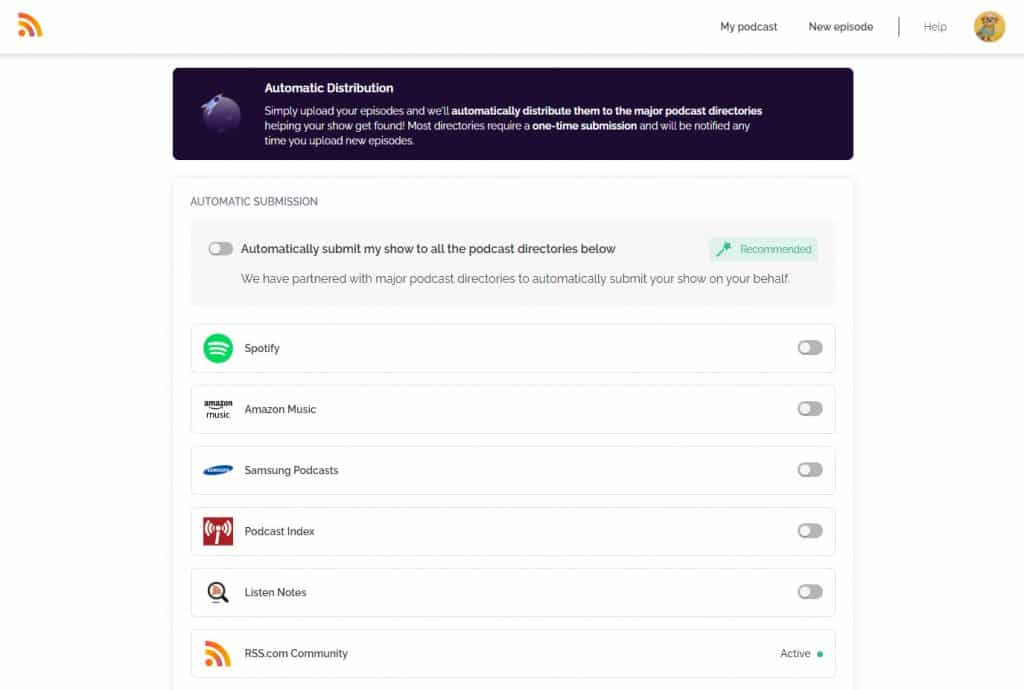
If you host your podcast with RSS.com, there’s nothing to submit manually. Just click the Distribution tab in your dashboard and toggle on “Automatically submit my show to all the podcast directories below.” We handle Spotify, Apple Podcasts, Amazon Music, and 40+ other platforms for you.
✨ Start a free RSS.com account and we’ll take care of the rest.
How to Add Your Podcast RSS Feed to Spotify (From Any Host)
If you’re hosting with another provider, here’s how to get your show on Spotify in 4 steps.
Step 1: Log in to Spotify for Creators
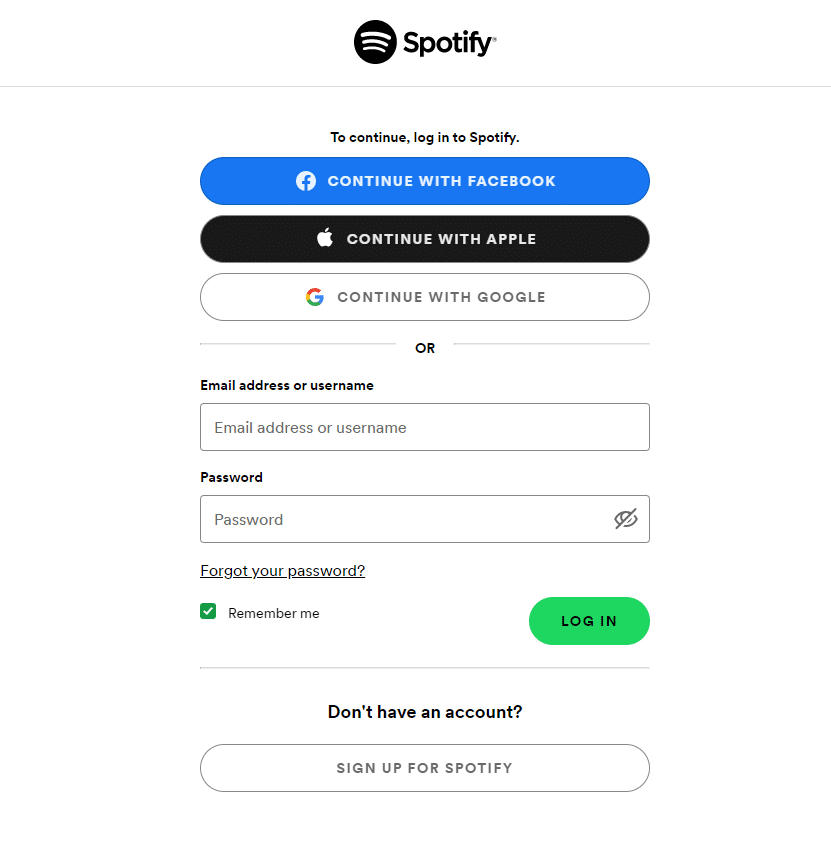
Start by logging into Spotify for Creators or creating a new account if you don’t have one.
💡 If you’re creating a new account, use the same email address associated with your podcast host. This prevents verification errors down the line.
Step 2: Submit Your Podcast RSS Feed
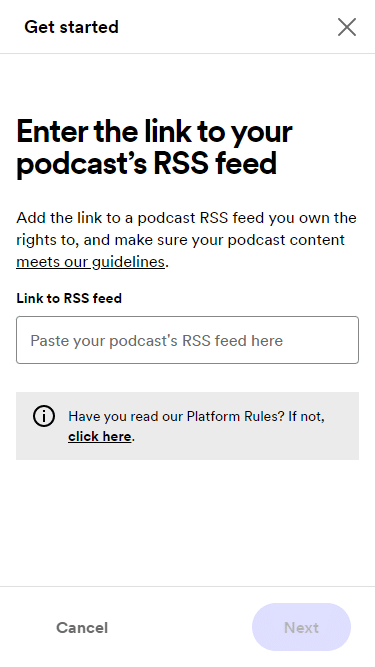
Once you’re logged in, click Get Started and paste in the link to your podcast’s RSS feed.
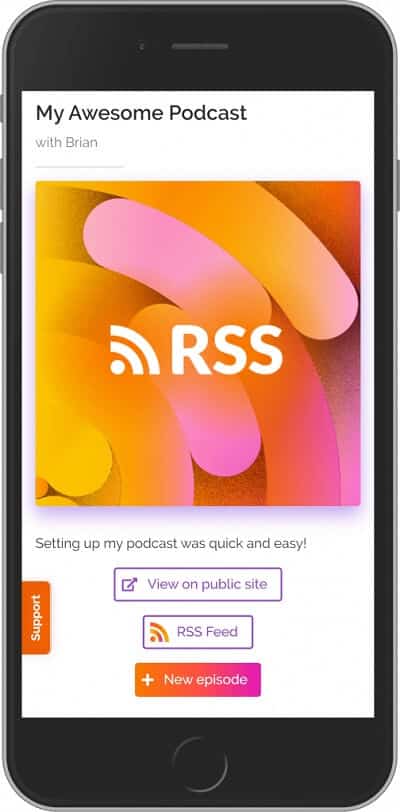
Don’t know where to find your RSS feed?
Your podcast host generates it automatically. It usually lives in your dashboard under a tab labeled “Distribution,” “RSS,” or “My Podcast.”
If you can’t find it, your host’s support team can point you to it in seconds.
➡️ Spotify’s direct submission URL: https://podcasters.spotify.com/dash/submit
A note on email verification: Spotify will send an 8-digit verification code to the email address listed in your RSS feed. Most hosts (including RSS.com) hide your email address by default to protect you from spam. You may need to temporarily enable email visibility in your host’s settings before submitting.
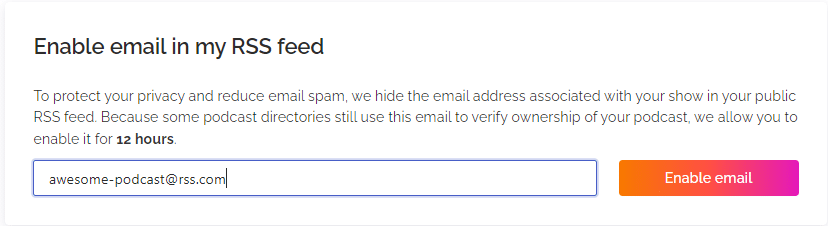
On RSS.com, go to the Settings tab, find the “Enable email in my RSS feed” section, enter your email, and click “Enable email.” You can turn it off again after Spotify verifies your show.
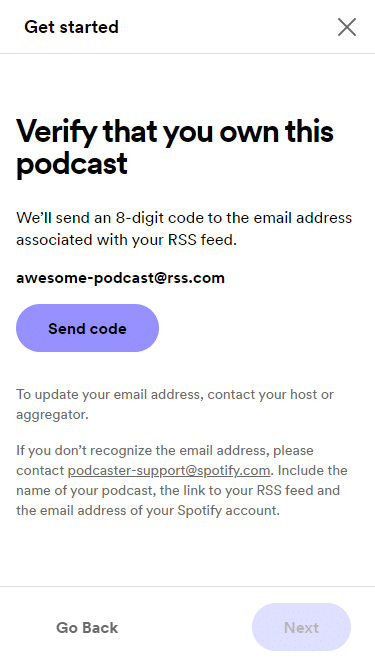
Step 3: Add Your Podcast Details
Once your show is verified, Spotify will ask you to fill in a few details: category, language, country, and your hosting provider. Select RSS.com from the hosting dropdown if that’s where you’re hosted.
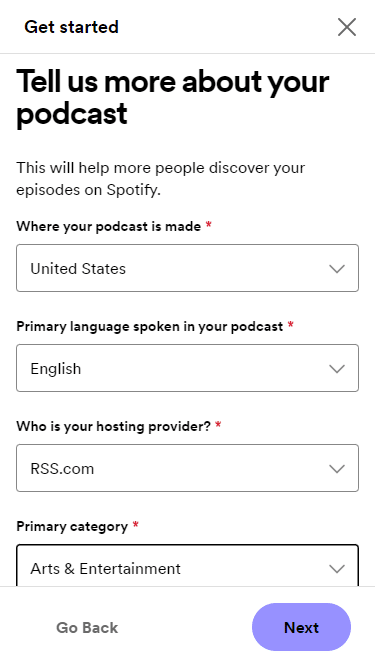
Step 4: Review and Submit
Double-check everything, click Next, review your information, and hit Submit.
🙌🏽 That’s it. Your podcast is now in Spotify’s system and will be live shortly.

😕 Getting an Error? Here’s How to Fix It
Two errors trip up most podcasters when submitting to Spotify. Here’s how to solve both.
Error 1: “Your podcast needs a globally unique identifier (GUID)”
This means your podcast feed is empty. Spotify can’t accept a feed that doesn’t contain at least one episode. Upload your first episode to your podcast host, wait a few minutes for the feed to update, then resubmit.
Error 2: “Your podcast RSS feed is missing an email address” or “Your email needs to be verified”
Spotify uses email verification to confirm you actually own the podcast, and it pulls that email address directly from your RSS feed. If the feed doesn’t have an email, or the email listed is wrong, the submission will fail.
The fix depends on your host:
On RSS.com: Go to Settings, find “Enable email in my RSS feed,” add your email, and turn it on. Resubmit to Spotify. Once verified, you can turn it back off.
On other hosts: Check your host’s settings for an option to include or update the email address in your public RSS feed. If you can’t find it, contact your host’s support team.
How Long Until Your Podcast is Live on Spotify?
Most shows appear within a few hours, though it can take up to 5 days in some cases.
Spotify doesn’t send an email when your show goes live, so you’ll need to check back manually. The easiest way is to search for your podcast name directly in the Spotify app.
Tired of Manual Submissions?
If you’re reading this because you’re frustrated with your current podcast host, or because submitting to every directory one at a time feels like a chore, there’s an easier way.
RSS.com automatically distributes your podcast to Spotify, Apple Podcasts, Amazon Music, iHeartRadio, Deezer, and 40+ other platforms. You set it up once, and every new episode gets pushed to every directory automatically. No manual submissions, no email verification juggling, no wondering if your feed made it.
Switching hosts is easier than most podcasters think. You can import your entire back catalog in a few clicks, and your existing listeners won’t miss a beat.
Ready to stop juggling submissions? Start free on RSS.com, or use code FREE3MONTHS for three months free on any paid plan. Already hosting somewhere else? We’ll help you migrate your show in a few clicks.
Submit Your Show to the Top Podcast Directories
While Spotify is one of the biggest, it’s not the only directory that matters. Here are step-by-step guides for the rest of the major podcast listening apps:
- How to submit your podcast to Apple Podcasts
- How to submit your podcast to TuneIn
- How to submit your podcast to iHeartRadio
- Submit your show to Pandora
- How to submit your podcast to Amazon Music & Audible
- How to submit your show to Deezer
🍿 Prefer to Watch?
Check out the video below for a visual walkthrough on how to get your podcast on Spotify.