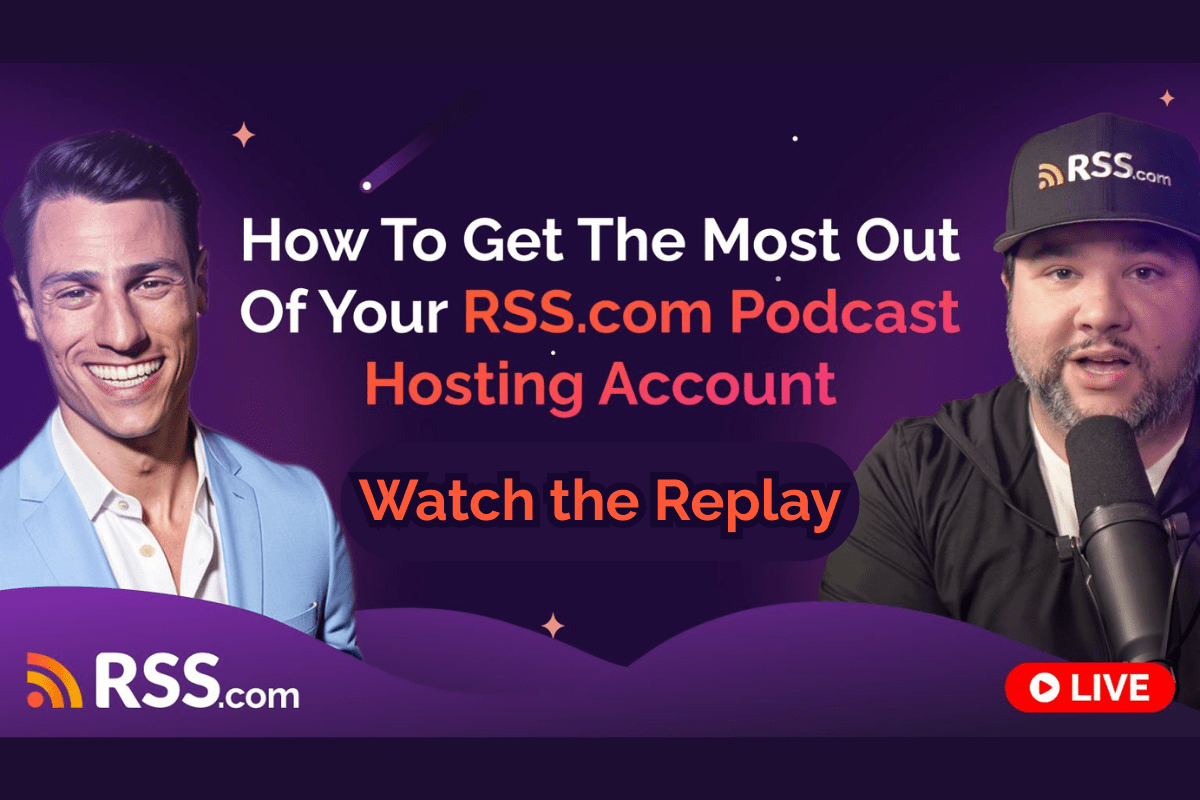
We recently hosted a free, interactive webinar to help podcasters get more out of their RSS.com hosting account.
Greg Wasserman, Head of Relationships at RSS.com, and Joe Casabona, RSS.com Evangelist, podcast consultant, and host, walked through the key features available inside RSS.com, from essential hosting tools to advanced Power Ups.
While many podcasters use their host simply to upload and publish episodes, RSS.com offers a wide range of additional capabilities, including monetization tools, Podcasting 2.0 features, collaboration options, and powerful analytics insights.
Whether you’re new to RSS.com or you’ve been hosting your podcast for years, this session helps you find features you may be overlooking and use your account more strategically.
A Quick Recap of the Session
The session ran about an hour. Greg shared his screen and used his own account as a live example, clicking through the dashboard piece by piece while Joe added context from his own shows. They took questions from the chat the whole way through.
Most podcasters only use a small slice of what their host can do. Greg and Joe went feature by feature to show what’s already sitting in your account, much of it on the Free, Local, and Niche plans. The short version is below, so you can skim the highlights or jump back into the parts that matter to you.
Watch the Full Session
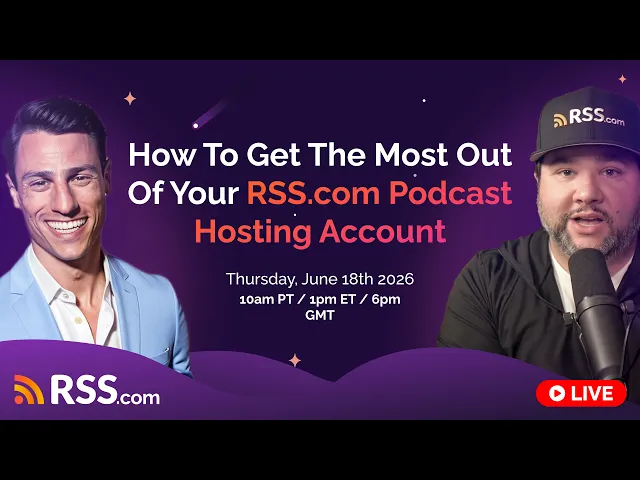
What You’ll Learn by Watching
- Core hosting features every podcaster should use
- How to activate and use Power Ups
- An overview of RSS.com’s Podcasting 2.0 capabilities
- Built-in monetization tools
- Collaboration and multi-user features
- Tips for simplifying workflows and saving time
Get More Out of Every Episode
Use Your Free Transcripts
With any paid plan, RSS.com includes AI-generated transcripts. They help in a few ways. They make your show accessible to people who can’t listen. They put your spoken words on your website, so your content shows up when someone searches for it.
And, you can copy a transcript into any AI tool to help you write a better description, a newsletter, or a social post. In settings, you can set transcript quality to low, medium, or high, and you can choose to auto-accept transcripts or review them yourself first.
Learn more about how to repurpose your podcast into other content.
Write a Description That Earns the Click
You get 4,000 characters for your episode description, and most podcasters barely use a fraction of it. You don’t have to fill all of it. But a strong description tells people exactly what they’ll get, which helps them decide to hit play. Greg breaks his into sections like “listen for,” guest links, and sponsor info. Apps like Spotify also read your description for search, so more useful detail means more ways to get found.
Nail Your Title and Episode Numbers
Your title can run up to 250 characters, but most apps only show the first 40 before someone taps to see more. Make those first 40 count. For numbering, check whether you’re set to episodic or serial in Settings. If you mark seasons unevenly, your episodes can show up in a strange order.
Add Chapters So People Can Jump Around
Chapters let listeners skip to the part they want. They boost engagement, and they give YouTube extra info that can surface specific moments in search. They also hand you useful data. If you notice listening jumps at a certain chapter, that’s a topic worth doing more of. Chapters are worth adding even on shorter episodes.

Related: How to Add Chapters to Your Podcast
Don’t Stress About Keywords
Keyword stuffing used to matter. It doesn’t do much now, since apps pull context straight from your transcript. Add a few real keywords plus your guest or network name and move on. A handful of smaller platforms still use them, so they’re not useless, just not worth a lot of your time.
Tag Your Episodes with Podcasting 2.0
RSS.com lets you tag where an episode was made and where it’s about. Some apps use that to serve your show to nearby listeners, the same way a news app shows you local stories. RSS.com is part of the Podcast Standards Project, which works with apps to support more of these features over time.

Check That Your Artwork Fills the Frame
When you upload episode art, use the zoom slider to make sure the image fills the whole box. Otherwise you can end up with a white border around your artwork. Keep in mind that changes don’t always show up instantly, since apps need time to crawl your feed.
Label AI Content
RSS.com lets you mark what part of your episode uses AI. It’s a simple way to be upfront with your audience about what’s human and what isn’t.
Also see: AI Disclosure in Podcasting: What It Is, Why It Matters, and How to Do It
Share and Distribute the Right Way
Send People the Right Link
When someone asks for your show, don’t send your private dashboard link, and try not to send a single-platform link like Spotify or Apple. A listener who doesn’t use that app is stuck. Share your RSS.com public page instead, which has a “Listen On” button for every app, or use a tool like Podlink. That way people listen wherever they want.
Turn On Full Distribution
RSS.com submits you to the major platforms with one click. A few directories like Deezer, iHeart, Pandora, and TuneIn need you to make an account and link your feed, and RSS.com gives you the steps. The big apps cover most listening, but the smaller ones can still help promote your show, so don’t skip them. If a “Listen On” button is missing from your public page, that’s a sign you’re not fully distributed.

Publish to YouTube
You can publish straight to YouTube from your distribution tab with one click. If you’re audio-only, RSS.com’s PodViz tool turns your audio into a video so you can reach the YouTube audience too.
Also see: How to Start a Podcast on YouTube
Make Money From Your Show
PAID Programmatic Ads
PAID is RSS.com’s programmatic ad solution. You can run pre-roll, mid-roll, automatic mid-roll, and post-roll ads. If you’re just starting out and worried about annoying listeners, turn on post-roll at the very least. People who reach the end already like your show.
You can also drop manual ad markers if you run a segmented show and want to place breaks yourself. One thing to know: with programmatic, you don’t control ad length or whether every slot gets filled, and pre-roll or mid-roll ads can shift your chapter markers.
Apple Podcasts Subscriptions
For about $20 a year, you can enable Apple Podcasts Subscriptions and offer early access or an ad-free version of your show. You set your own monthly or yearly price, and Apple handles the tax side. You can run this alongside something like Patreon, so you’re not locked into one option.
Find Sponsors with CodeADX
CodeADX is an RSS.com partner that helps you connect with advertisers for your show. It’s a path worth looking at if you want sponsorships.
Take Donations
You can add a donation button that links to PayPal, with a short 25-character label like “Show Your Love” or “Buy Me a Coffee.” If you use it, say so on your show and point people to it.

Value for Value
Value for Value is a Podcasting 2.0 feature that lets listeners send small crypto micropayments, even per streamed minute. It’s a flexible way for fans to support you based on how much you put out.

Learn more ways to monetize your podcast in our post How to Make Money Podcasting.
Work Smarter with Your Account
Keep Your Email Hidden
RSS.com hides your email by default, which keeps bots and scrapers from filling your inbox with pitches. When you need to set up certain directories that require authentication, you can unhide it in settings for a couple of minutes, then hide it again.

Add Collaborators
You can invite other people to help run your show as collaborators for your podcast. An admin can publish episodes, which is handy for a co-host, virtual assistant, or editor. An analyst can see your analytics only, which is perfect for someone selling sponsorships for you. They get what they need without the keys to everything.

Run a Whole Network
The network plan lets you host as many shows as you want under one account. Pair it with collaborator roles and you can manage a full podcast network, giving each host access to their own show while you stay in charge.
Also see: How to Start a Podcast Network – A Step-by-Step Guide
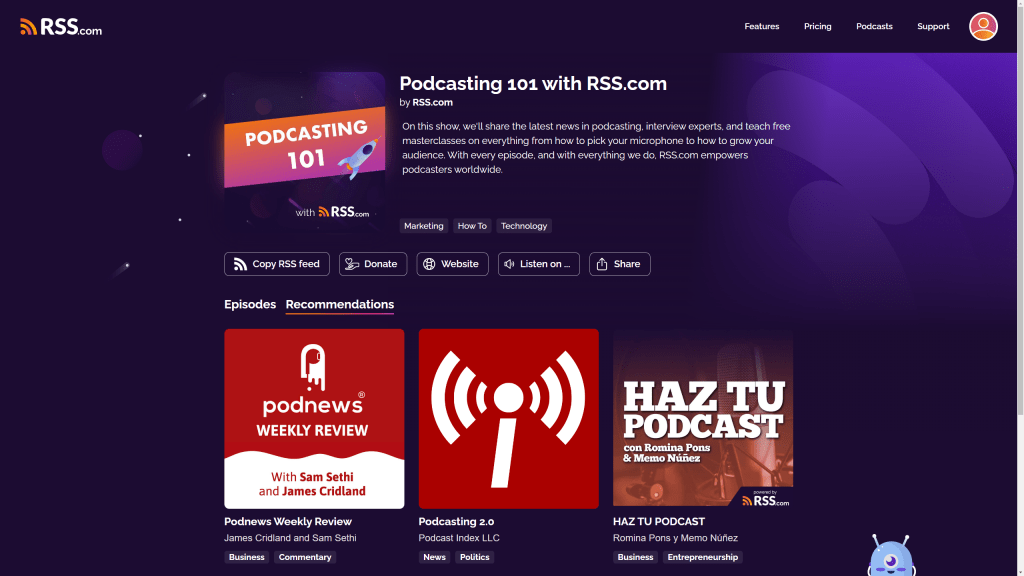
Recommend Other Shows with Pod Roll
Podroll is a Podcasting 2.0 feature that lets you highlight up to eight shows you like. It’s a simple way to cross-promote with other podcasters. Trade recommendations, rotate them monthly, and find new people to work with. It shows up in apps that support the feature.
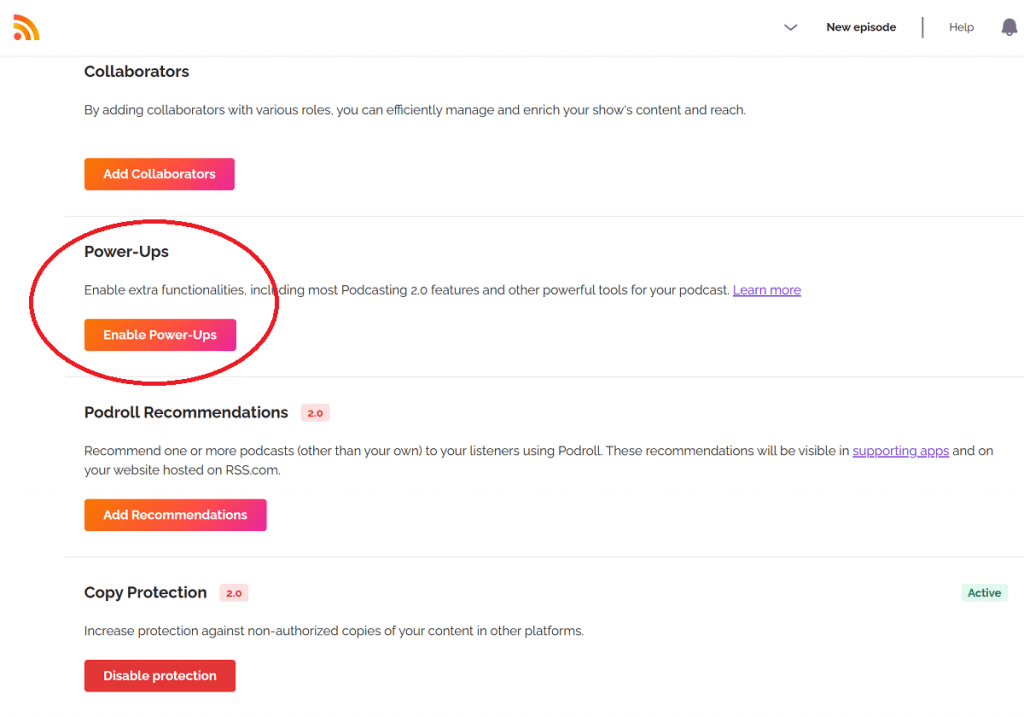
Level Up with Power Ups
Power Ups unlock more Podcasting 2.0 features:
- Alternate enclosure: offer your episode in another language or a lower-bitrate version for listeners with slow internet.
- Sound bites: create audiograms or short clips to promote your show.
- Live item: live-stream your podcast in apps that support it.
- Publish in the past: backdate an episode so it lands in the right spot instead of at the top of your feed.
Get Help and Get Connected
Knowledge Base and Blog
Use the in-app help button to search support articles, or head to the RSS.com Knowledge Base and blog. Both are full of guides on how to use the platform and how to grow your show.
Join the Community
Paid RSS.com members get access to a private Slack community with more than 2,500 podcasters. It’s a good place to ask questions and trade ideas.
Sign Up for the Affiliate Program
Once you start podcasting, people you know will ask how you did it. The affiliate program lets you earn by pointing them to RSS.com, and you can add your affiliate link right in your episode description.

Keep an Eye on What’s New
The “What’s New” button opens the change log, where you can see the features the team keeps rolling out. There’s also a spot to leave product feedback and tell the team what you’d like to see next.
Join Our Next Event
You can always find our events on the blog, and replays live on our YouTube channel. Keep an eye out for our next training so you can keep getting more from your account. Sign up for our next events here!