Your Sunday message matters. However, many of the people you want to reach weren’t in the room when you delivered it. They were working, traveling, sick at home, or simply haven’t found your church yet.
A podcast changes that.
It means every sermon, every service, every word of encouragement you share can keep traveling all week long, long after the final hymn fades out.
The good news? You don’t need a production team or a big budget to make it happen. With Switcher handling your live video recording and RSS.com turning your worship content into a podcast, the whole process is simpler than you might think.
Why Video and Podcasting Work So Well Together
Churches like yours are already doing the hard part. You’re gathering people, delivering meaningful messages, and building community. The content is there. What most churches haven’t figured out yet is how to make that content work harder without working harder themselves.
Switcher lets you livestream and record your services using iPhones, iPads, or Macs, even just one device, so the barrier to entry is low. (And soon to come, you’ll be able to connect those Android devices as remote cameras too!) RSS.com then takes the audio from those recordings and distributes it as a podcast to Spotify, Apple Podcasts, and dozens of other places where people are already listening.
One service. Two powerful platforms. Content that keeps reaching people all week long.
Step 1: Record Your Service With Switcher Studio
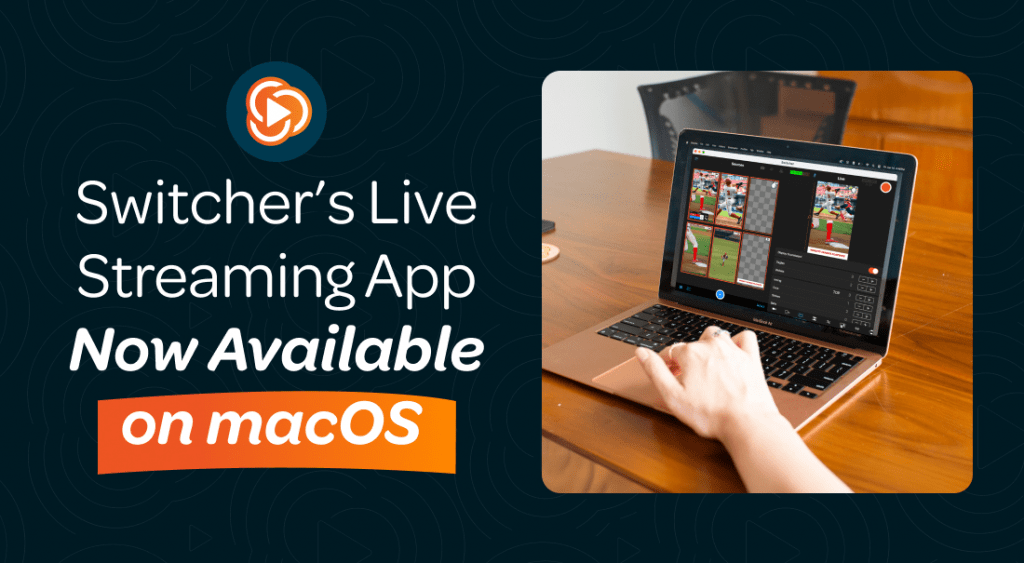
Switcher was built for exactly this kind of use case. Churches are one of their largest and most active communities, and the app is designed with non-technical users in mind.
Here’s what you get with Switcher:
Use what you already have. You don’t need professional cameras. Switcher works with iPhones, iPads, and Macs right out of the box. If you want to add more angles later, you can connect up to nine cameras over time. Perhaps you’re just starting with a single phone propped at the back of your sanctuary. That works too.
Livestream and record at the same time. Switcher lets you go live on Facebook, YouTube, and other platforms while also saving a local recording of your service. Your congregation can watch live, and you’ll have a full recording ready to use afterward.
Customize for your church’s brand. You can add on-screen text, Scripture overlays, song lyrics, your church logo, and more, all while recording. This makes the video feel polished without requiring any editing afterward.
Invite remote speakers or guests. If your pastor is traveling or you’re hosting a special speaker, Switcher lets remote guests join the stream from anywhere, with no software download required on their end.
Get started with Switcher Studio here: https://start.switcherstudio.com/RSS, and use code RSS10 for 10% off.
Step 2: Pull the Audio From Your Recording
Once your service is recorded in Switcher, you’ll want to extract the audio so you can upload it to RSS.com as a podcast episode. Let’s take a look at the simplest way to do it.
The step-by-step process:
- Record your service in Switcher. The video is saved either locally on your device or in Switcher’s Video Library.
- Export or download the video file. It will be in MP4 format.
- Go to a free browser-based tool like CloudConvert. Upload your MP4 file there.
- Convert it to an audio format. M4A or MP3 both work well for podcasting.
- Download the converted audio file to your computer.
- Upload that audio file to RSS.com as a new podcast episode.
That’s it. No special software. No audio engineering degree required. Most church volunteers can learn this process in one sitting.
If you’re comfortable with Apple Shortcuts and iOS automation, there are ways to extract audio directly from local recordings on your iPhone without the conversion step. For most churches, the browser-based method above is the quickest and easiest place to start.
Step 3: Publish Your Podcast on RSS.com
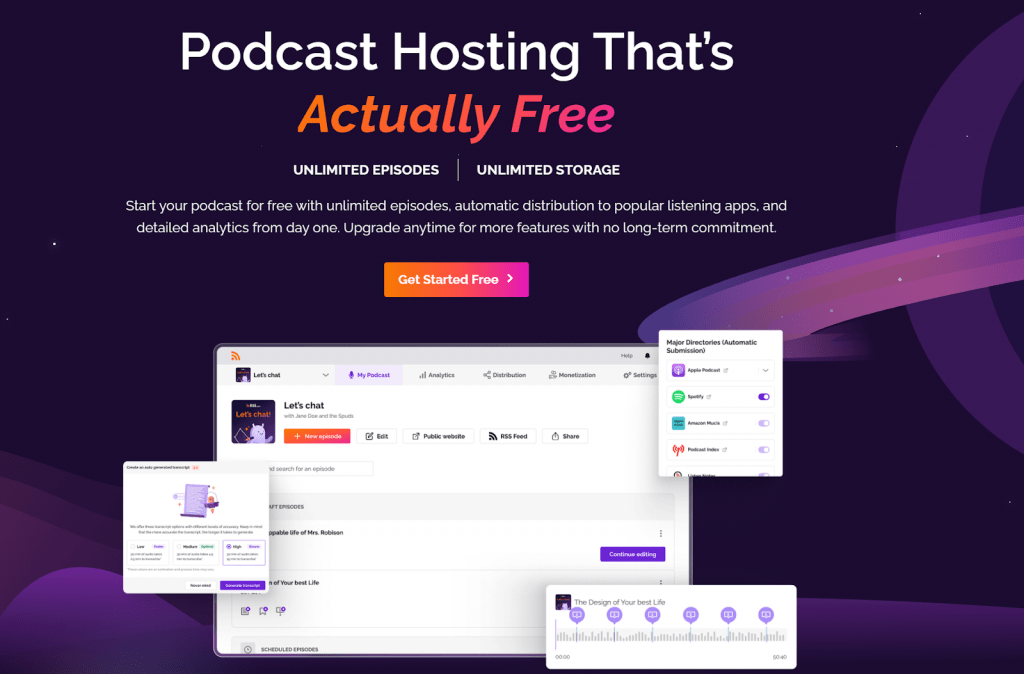
Once your audio file is ready, RSS.com handles everything from there.
RSS.com is a podcast hosting platform that distributes your episodes to every major listening app, including Spotify, Apple Podcasts, Amazon Music, YouTube Music, and more. You publish your episode once, and RSS.com sends it everywhere automatically.
This is what it would look like in practice for your church:
Set up your podcast once. Create your show, upload your church logo, write a short description, and choose your category. This takes about 15 minutes the first time.
Upload each week’s episode. After converting your audio, upload the file into RSS.com, add a title and description for that week’s message, and hit publish. Done.
Let RSS.com do the rest. Your episode goes out to every platform where your congregation, and potential new visitors, are already listening.
No extra steps.
No extra accounts to manage.
RSS.com also gives you analytics so you can see how many people are listening, where they’re tuning in from, and which episodes are connecting most. Over time, that kind of insight helps you understand what your audience actually wants to hear.
Why This System Works for Smaller Churches
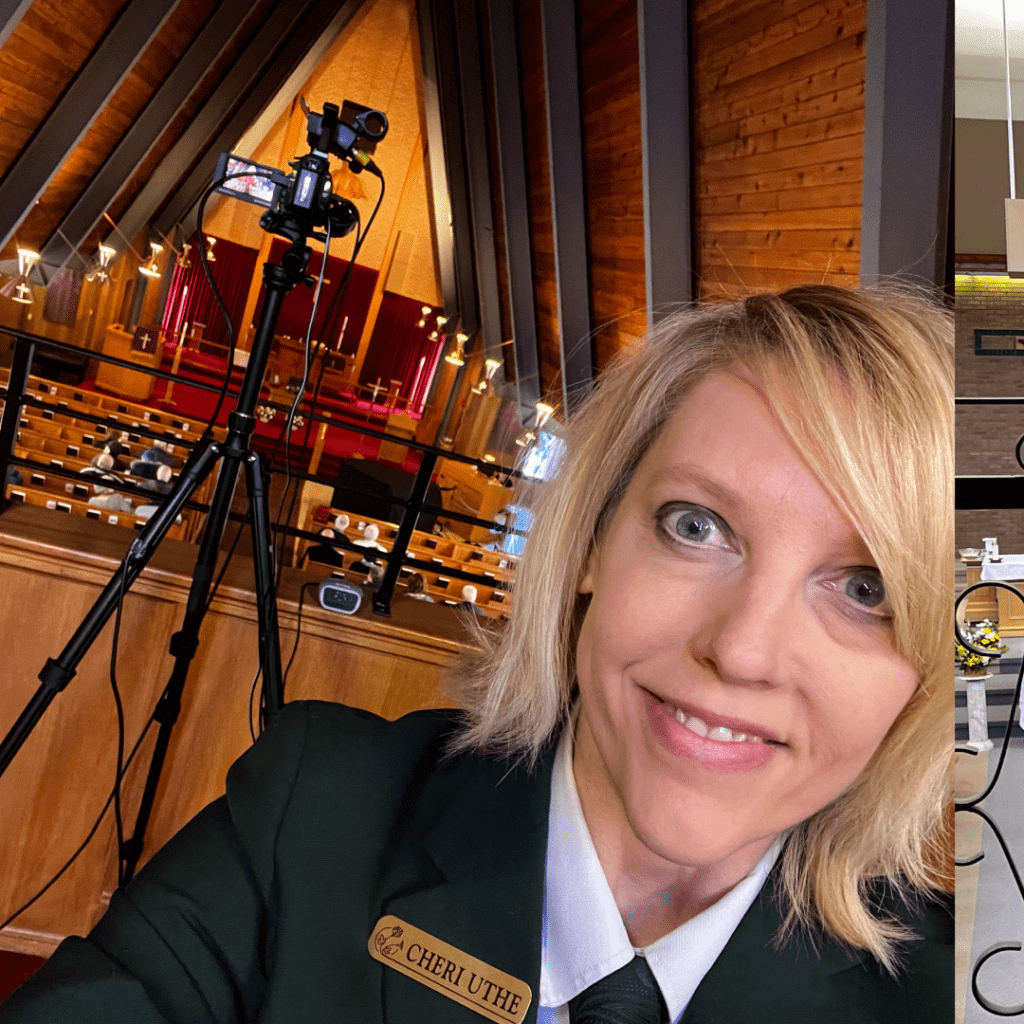
Not every church has a media team. Some have a single volunteer who wears about five different hats on a Sunday morning. This system was built with that reality in mind.
Switcher runs on any Apple device, and soon on Android devices as well, so there’s no equipment budget to justify. RSS.com’s plans are affordable and designed for creators at every stage, including those just starting out. And the workflow between the two platforms is simple enough that whoever manages it one week can hand it off to someone else the next.
You’re not building a broadcasting studio. You’re just making sure the message you already worked hard to deliver keeps reaching people after Sunday is over.
Getting Started
Here’s how to get started this week:
- Download the Switcher app on an iPhone, iPad, or Mac.
- Record your next service.
- Export the MP4, convert it to audio using CloudConvert.
- Create your RSS.com account and upload your first episode.
- Share the link with your congregation.
That’s your podcast. You can be up and running in the same week.
Ready to try Switcher? Head to https://start.switcherstudio.com/RSS, and use promo code RSS10 for 10% off your plan. Then head to RSS.com to start your free podcast with the Free Local and Niche Plan, and get your church’s message in front of more people, starting this week.