Apple Podcasts Subscriptions lets you turn listeners into paying supporters by providing early access and exclusive episodes to your fans.
In this guide, we’ll show you how to distribute and claim your show to start offering exclusive, subscriber-only content and start earning recurring revenue.
Step 1. Create a Free Account on RSS.com
If you already have an RSS.com account with at least one episode published, you will still need to join the Apple Podcasters Program. Click here to jump to that step, or simply scroll down to Step 2.
How to set up an RSS.com account:
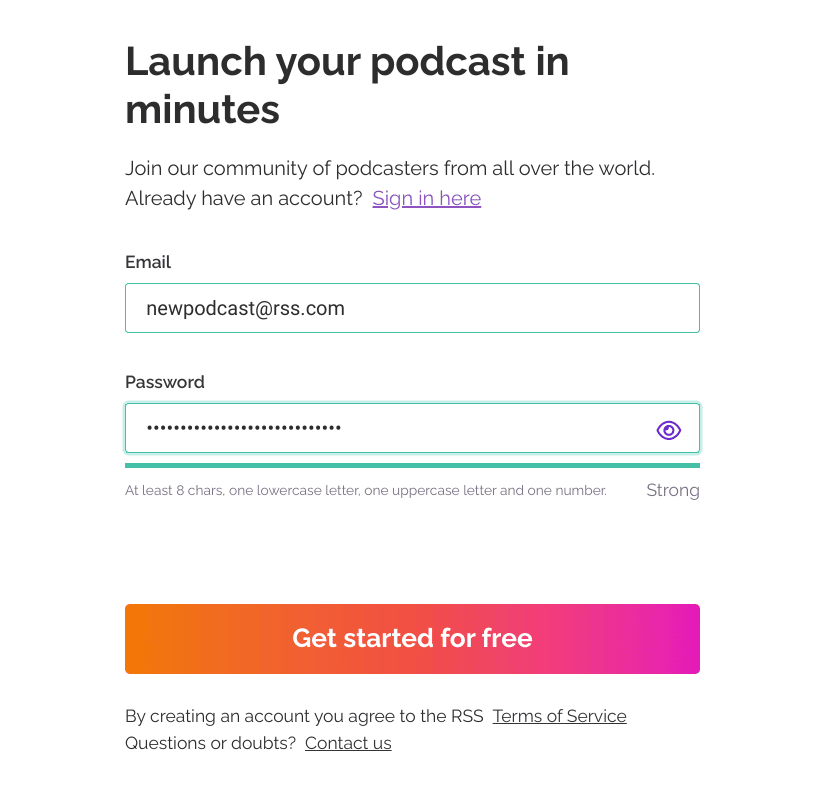
1. Go to https://dashboard.rss.com/auth/sign-up/
2. Enter an email address that you would like to use for your show.
3. Choose a password, and click “Get started for free.”
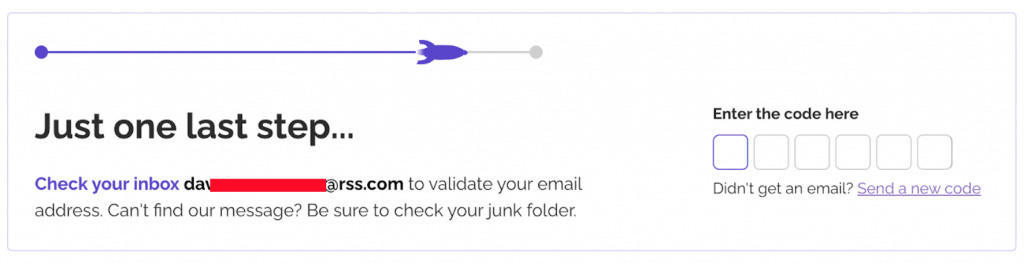
4. Enter the verification code sent to the email address used to set up your account.
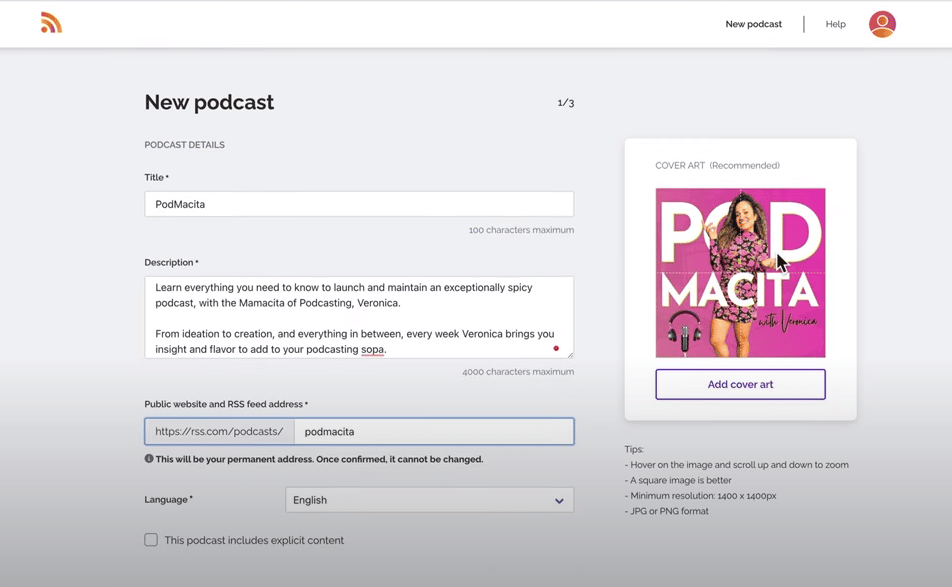
- 5. Once logged in, click “New podcast” to enter your new show’s details including:
- The name of your podcast
- Description of your show
- Your RSS feed address (see example below).
6. Next, fill out your author details and choose the category that best describes your new podcast.
7. Next, add your show’s cover art. If you need help, ideas or inspiration, check out this post on how to make an engaging podcast cover using Canva.
Now that your RSS.com account is set up, you will next need to upload a trailer or your first episode in your RSS.com dashboard.
🚨 You’ll need at least one public episode or trailer to submit your show to Apple Podcasts Connect. If you don’t complete this required step, you will not be able to set up Apple Podcasts Subscriptions through Apple Podcasts Connect.
After publishing your first episode, you next need to enable Apple Podcasts from the Distribution tab in your RSS.com dashboard.
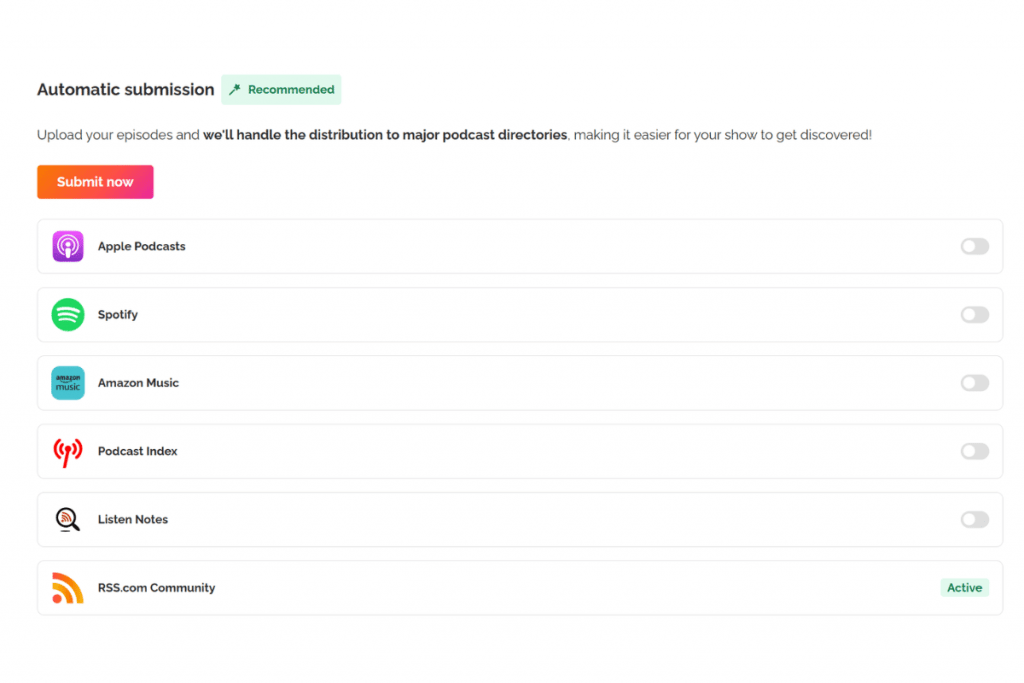
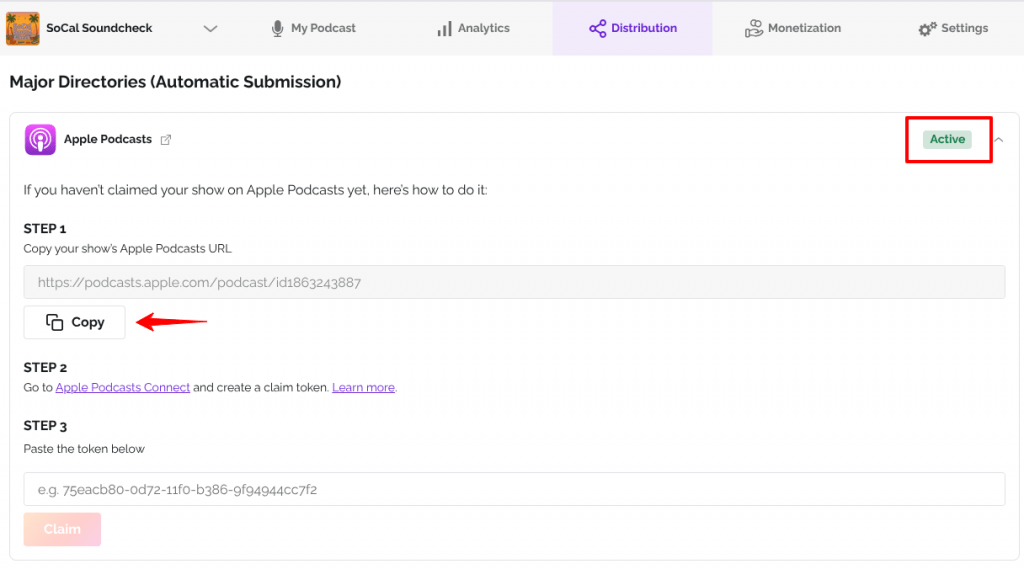
Once your show has been successfully distributed to Apple Podcasts, you’ll see a green “Active” button in the top right.
You’ll then be able to copy your Apple Podcasts show URL, which you’ll need to claim your show in Apple Podcasts Connect.
Step 2. Create an Apple Podcasts Connect Account
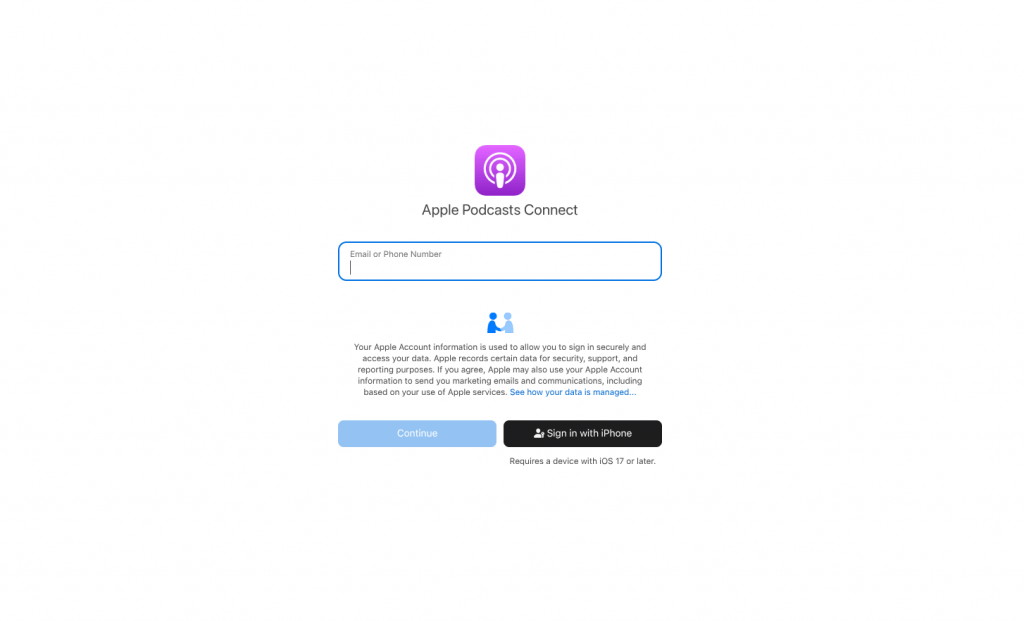
Apple Podcasts Connect is where you submit and manage your podcast and subscriptions.
To offer paid subscriptions, you need an Apple Podcasts Connect account. To get started, you must have an Apple ID.
It’s important to note that almost every iPhone, iPad, or Apple Music user has an Apple ID.
- If you already have an Apple ID, you can use it to log in. You can also have the option to sign in with your iPhone
- If not, create an Apple ID here
Once you have an Apple ID, go to podcastsconnect.apple.com, log in, and follow the prompts to set up your Apple Podcasts Connect account. For teams or business use, you may want a dedicated Apple ID to keep access organized.
Once logged into Apple Podcasts Connect, you’ll be promoted to set up your account.
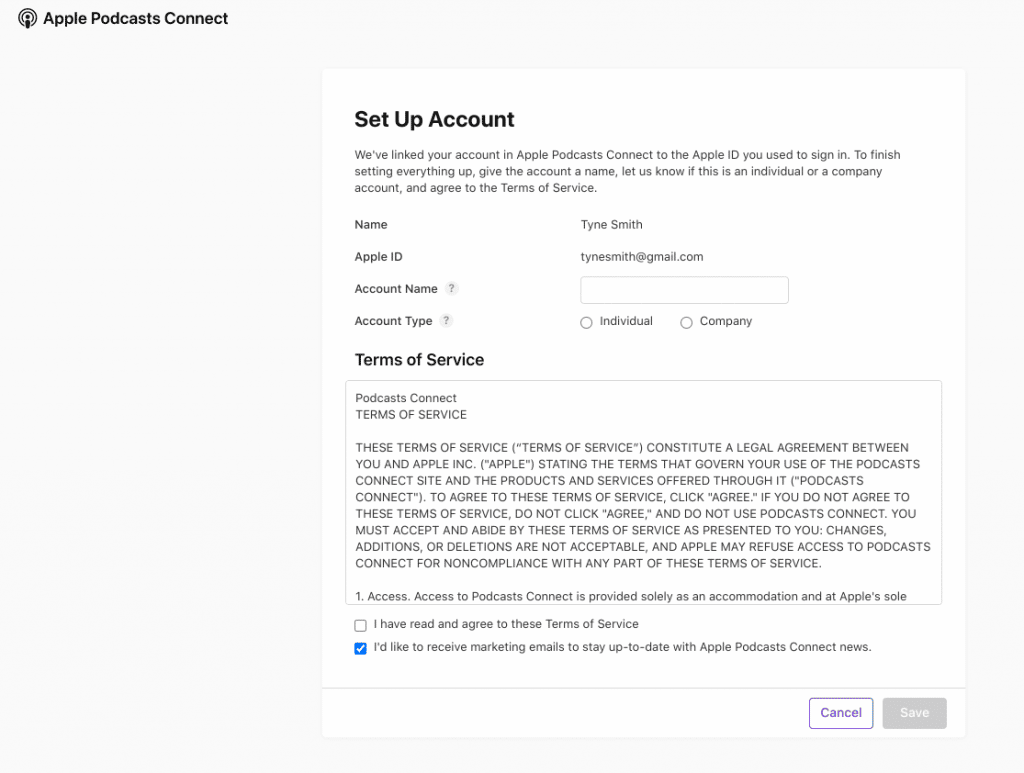
After you’ve set up your Apple Podcasts Connect account, you’ll need to join the Apple Podcasters Program, and complete your agreement.
3. Claim Your Show in Apple Podcasts Connect
Now that your show has been successfully distributed to Apple Podcasts through RSS.com and you have an Apple Podcasts URL in your Distribution tab, it’s time to claim your show in Apple Podcasts Connect.
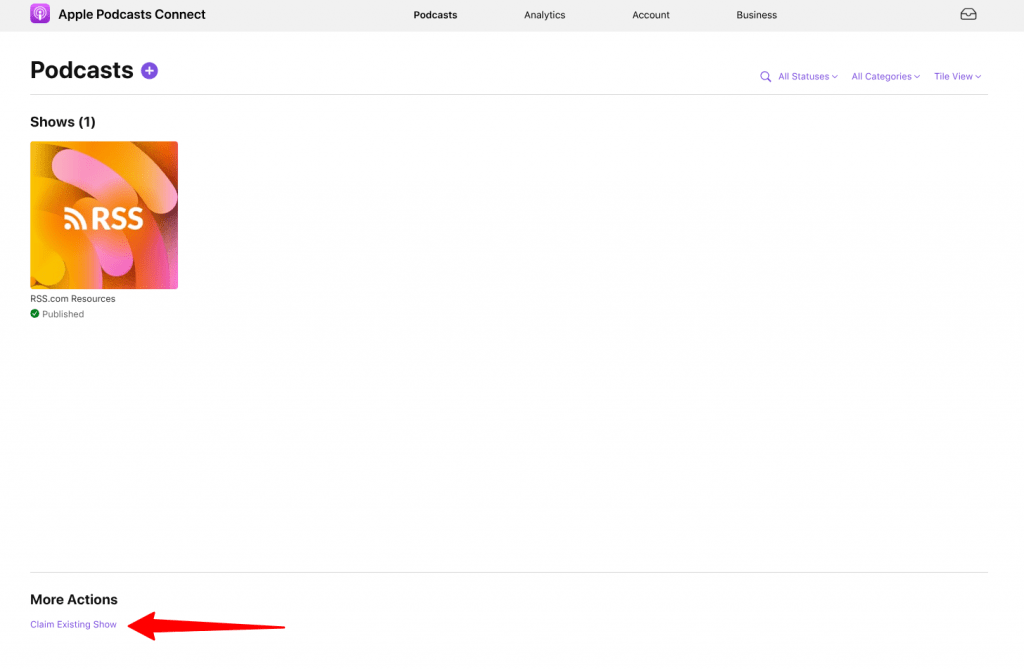
Under “More Actions,” click “Claim Existing Show” and copy and paste your show’s Apple Podcasts URL. Click “Next” once your podcast appears.
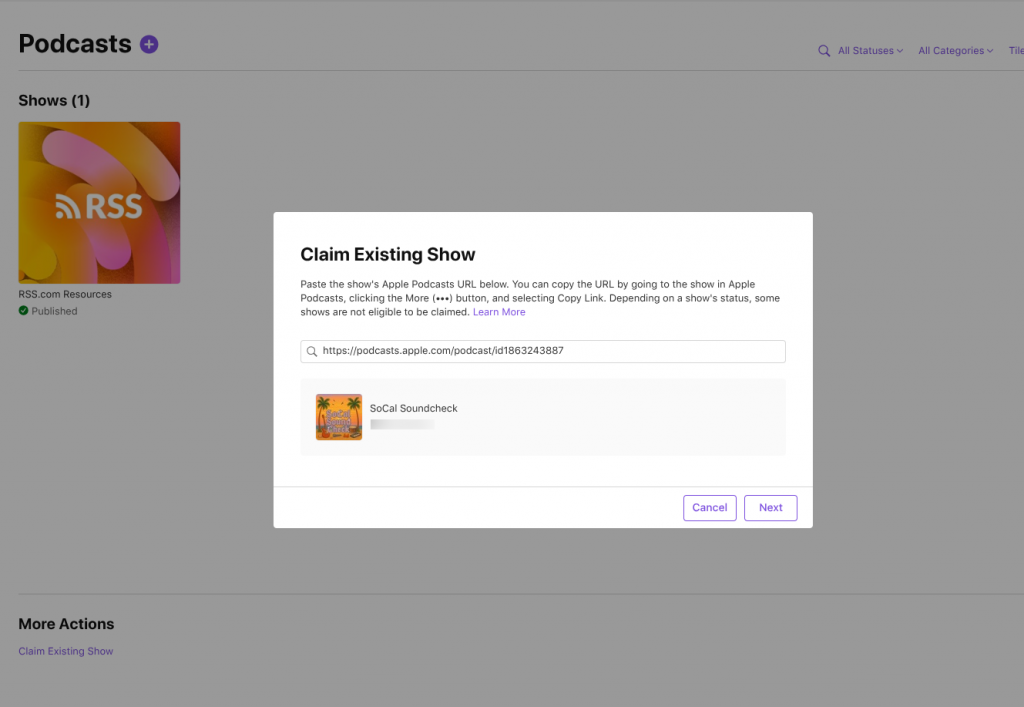
Next, copy the token using the “Copy” button.
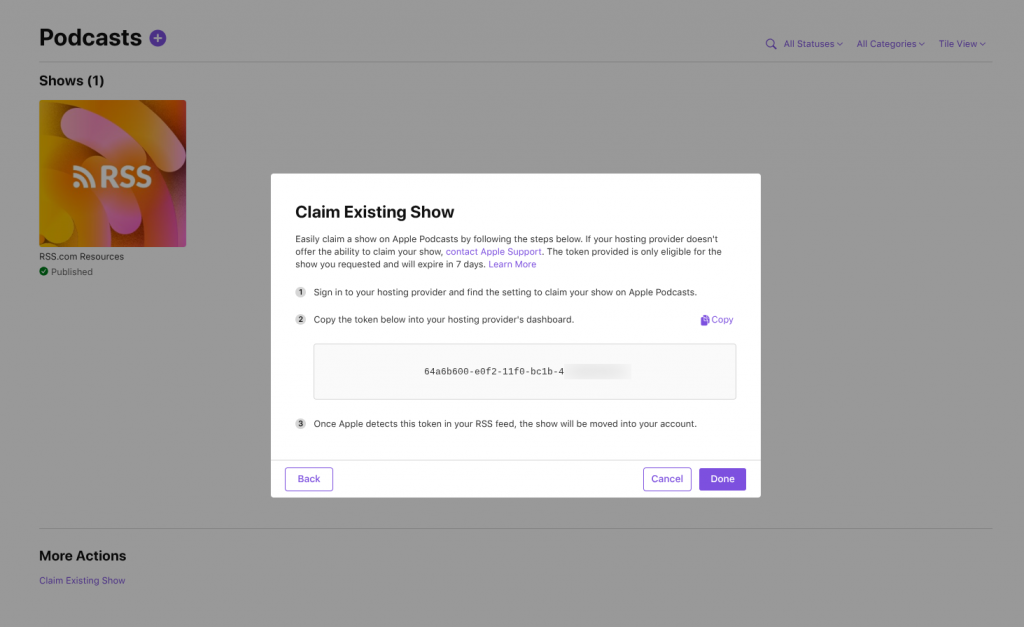
Paste your token into the Apple Podcasts section of the Distribution tab in your RSS.com dashboard and select “Claim.”
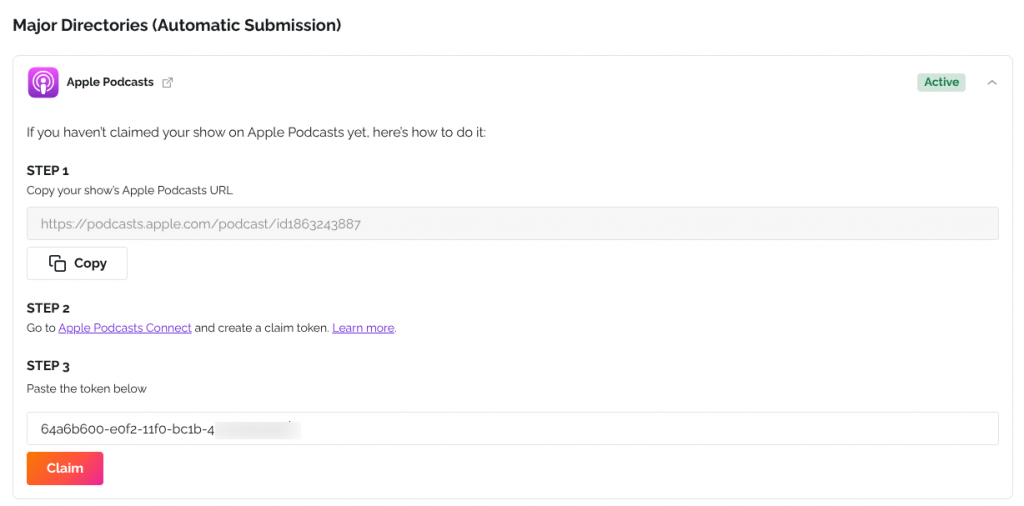
💡Once you’ve added your token, RSS.com will include it in your podcast’s RSS feed. Apple Podcasts will then review the feed to confirm the token matches.
Apple notes that verification typically occurs within 24 hours, though the full process may take several days. Once verified, Apple will assign the show to your Apple Podcasts Connect account, officially claiming the podcast.
It’s important to note, Apple will not contact you with a status update – once your podcast has been approved, your show will simply appear underneath “Podcasts” in your Apple Podcasts Connect account.
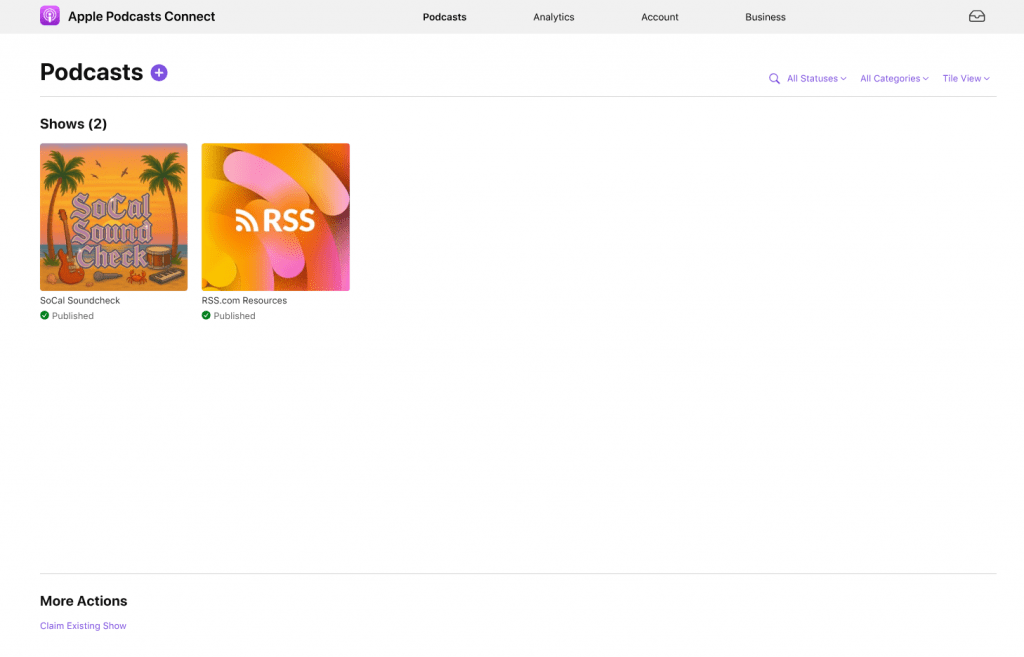
Join the Apple Podcasters Program
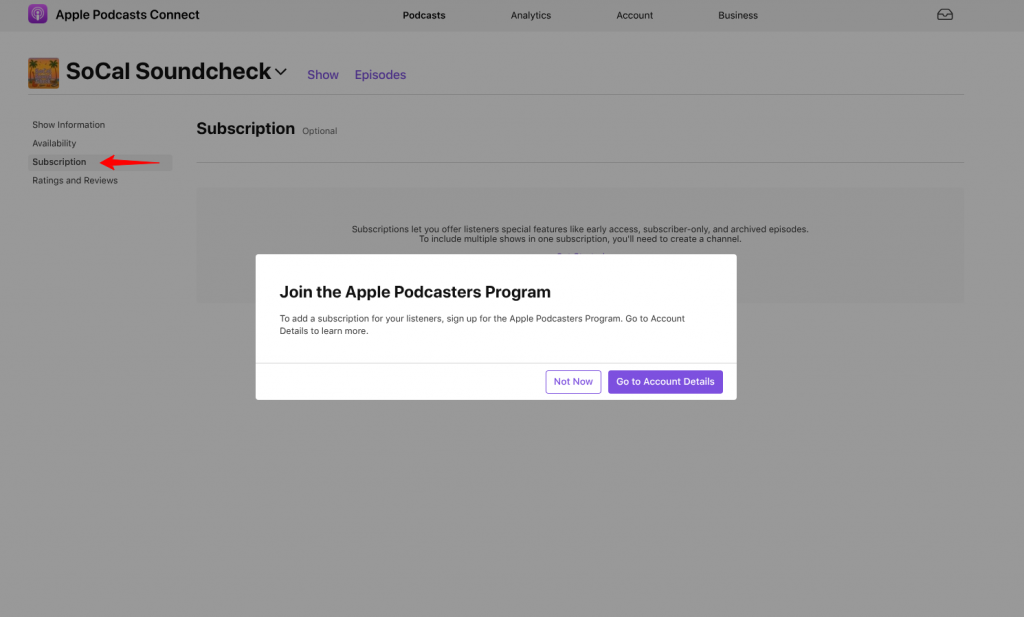
Once your show is reviewed and approved, you’ll need to join the Apple Podcasters Program. This $19.99/year membership allows you to offer premium episodes and paid subscriptions through Apple Podcasts.
In your account, select Subscriptions, then click the “Go to Account Details” button and choose Sign Up to join the program.
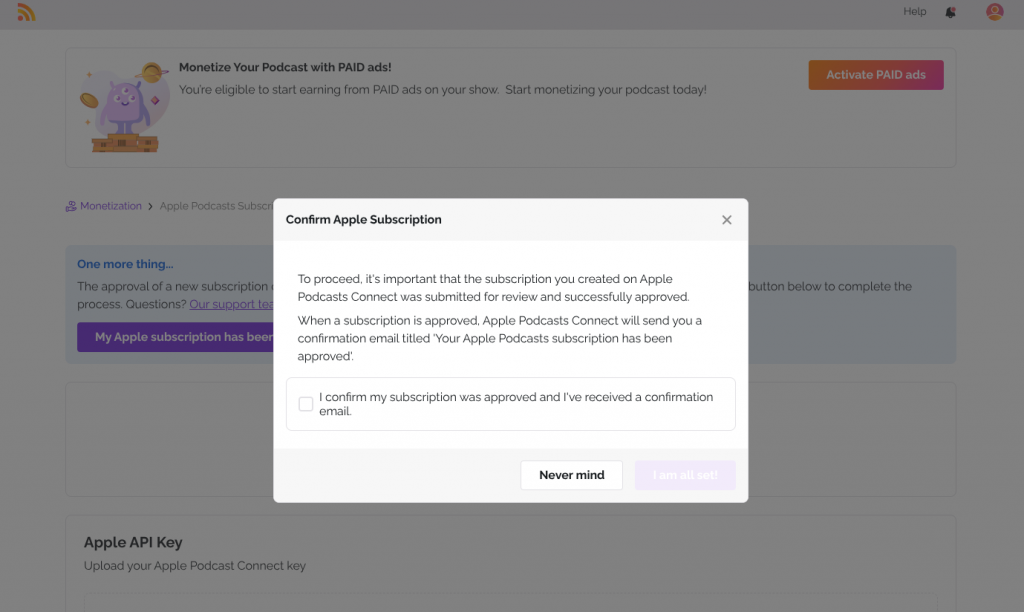
The approval of a new subscription can take up to a few days to be reviewed and approved. Unlike adding a new podcast, the subscription you created on Apple Podcasts Connect was submitted for review and successfully approved.
Unlike with adding a new podcast to your account, when a subscription is approved, Apple Podcasts Connect will send you a confirmation email titled ‘Your Apple Podcasts subscription has been approved’.
You can now, generate and download your API key in Apple Podcasts Connect under Account > Keys at which point, you’ll head back to your RSS.com Monetization dashboard and upload the key to finish setting up Apple Podcasts Subscriptions.
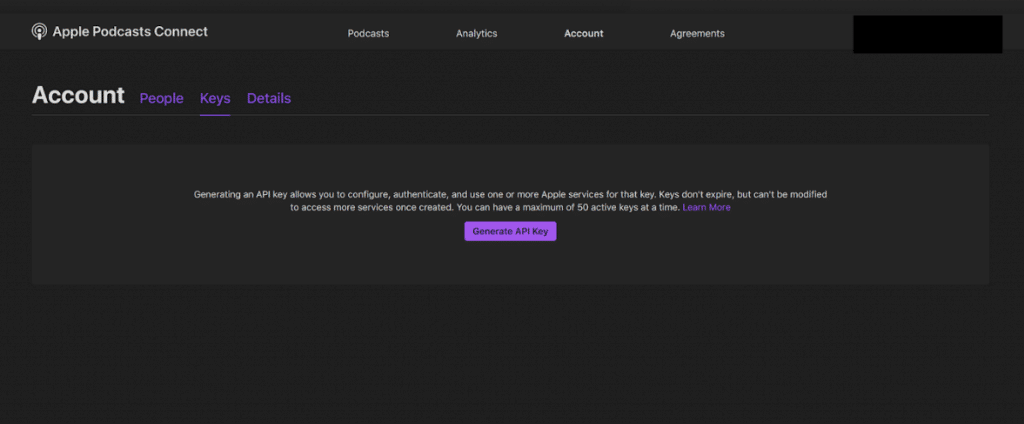
Step 4. Set up Apple Podcasts Subscriptions in Your RSS.com Dashboard
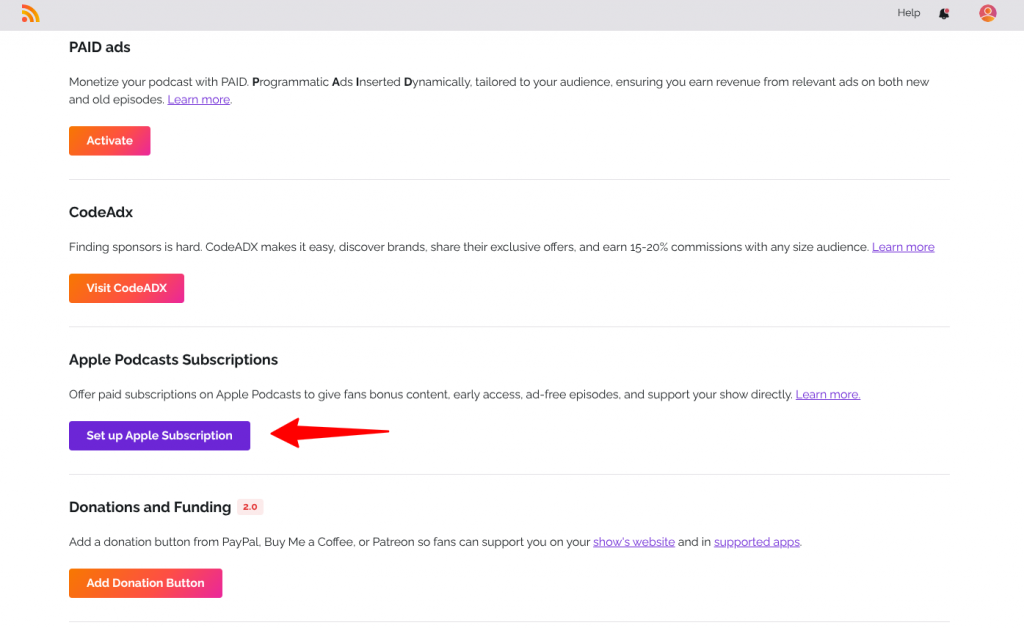
In your RSS.com dashboard, go to the Monetization tab and find Apple Podcasts Subscriptions, then click the “Set Up Apple Subscription” button.
Before uploading your Apple API Key from Apple Podcasts Connect, select the “My Apple subscription has been approved” button and check the box confirming you received Apple’s confirmation email.
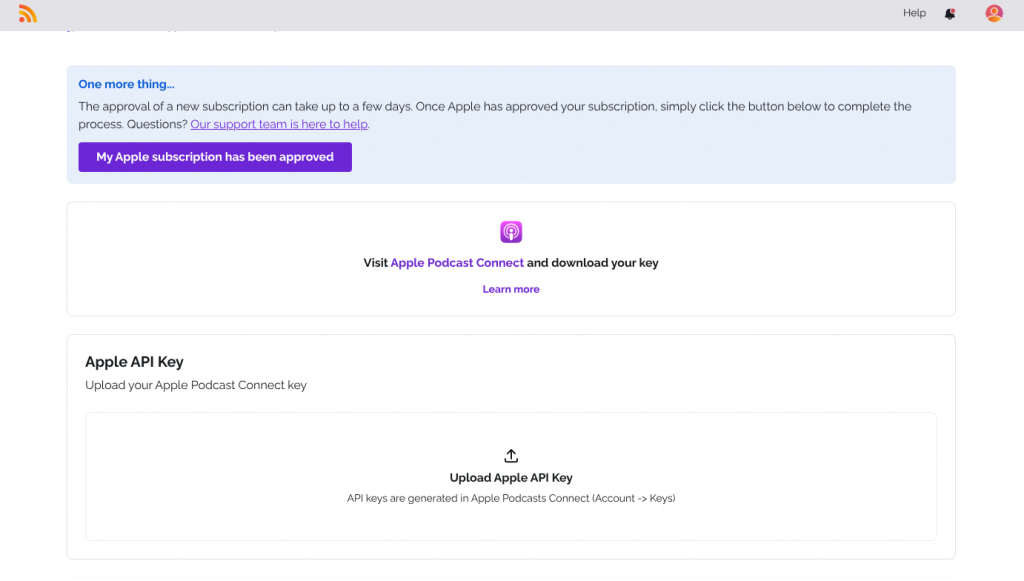
Next, upload your API key in your RSS.com dashboard, and your status will change to Active.
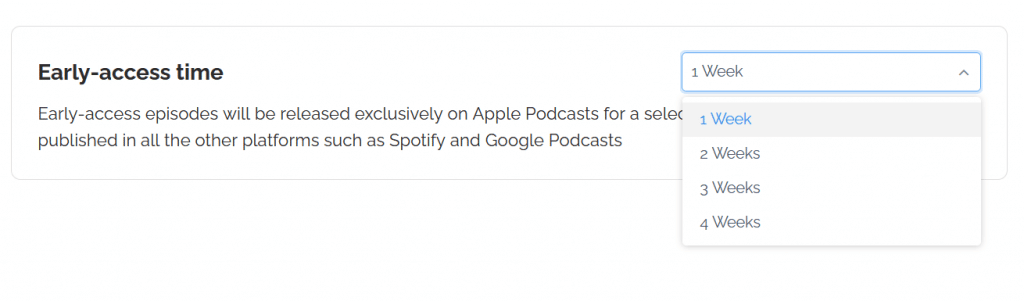
You can now select how early you’d like to release episodes to your subscribers.
Options include:
- After 1 week
- After 2 weeks
- After 3 weeks
- After 4 weeks
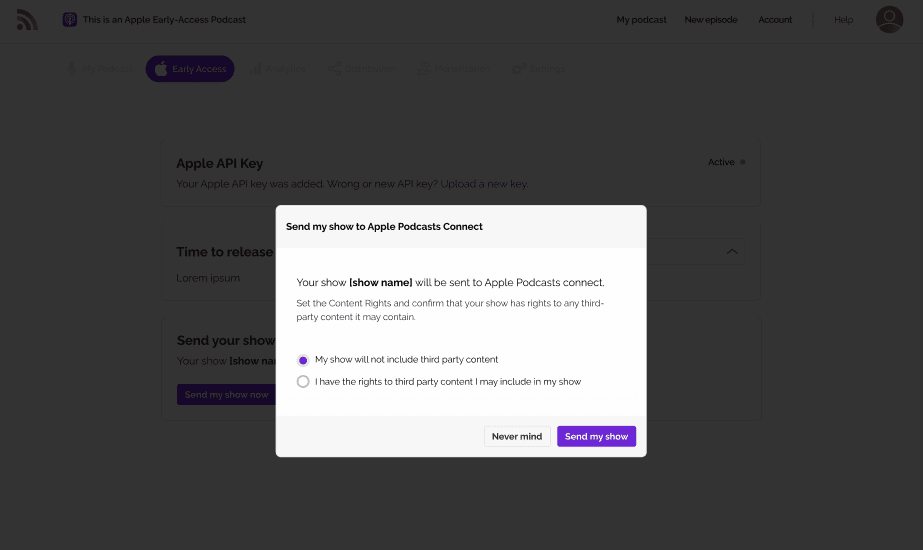
Next, in your RSS.com dashboard, you will be prompted to sync your show to Apple Podcasts Connect and confirm you own the rights to the content you are uploading on RSS.com.
Now that you’ve synced your show to Apple Podcasts Connect through your RSS.com dashboard, you can decide how much to charge listeners for Early Access and/or Exclusive episodes.
Step 5. Set Up Subscription Prices with Apple Podcasts Subscriptions
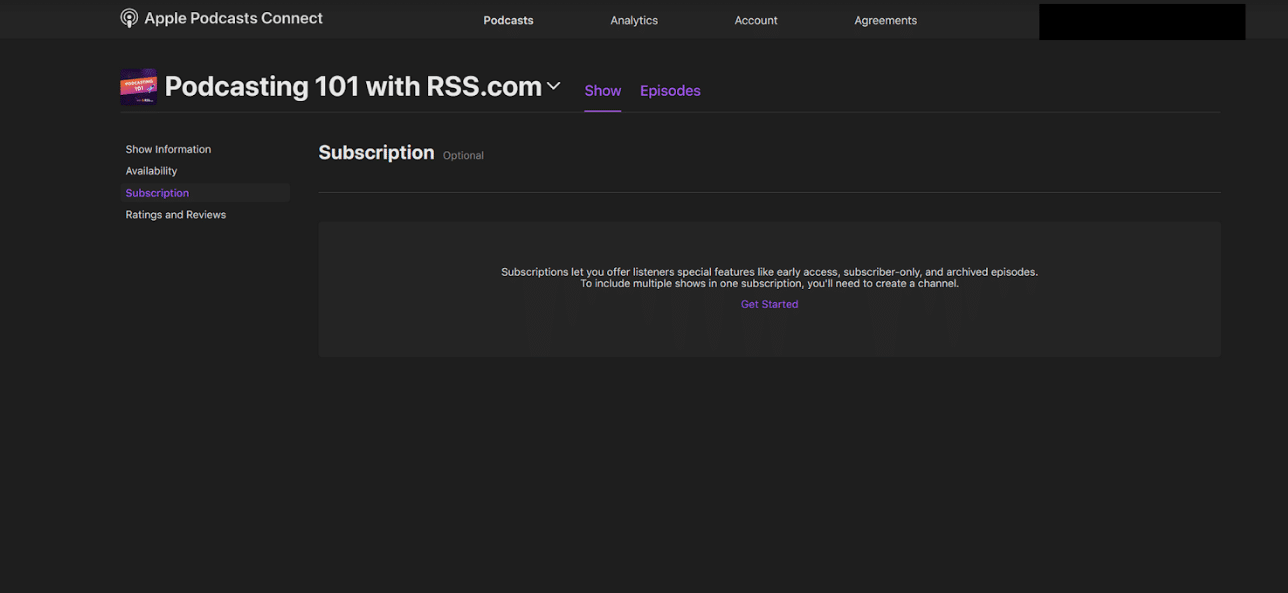
To set up your subscription prices for your Early Access and Exclusive episodes, head back over to Apple Podcasts Connect and click “Subscription” in the left menu.
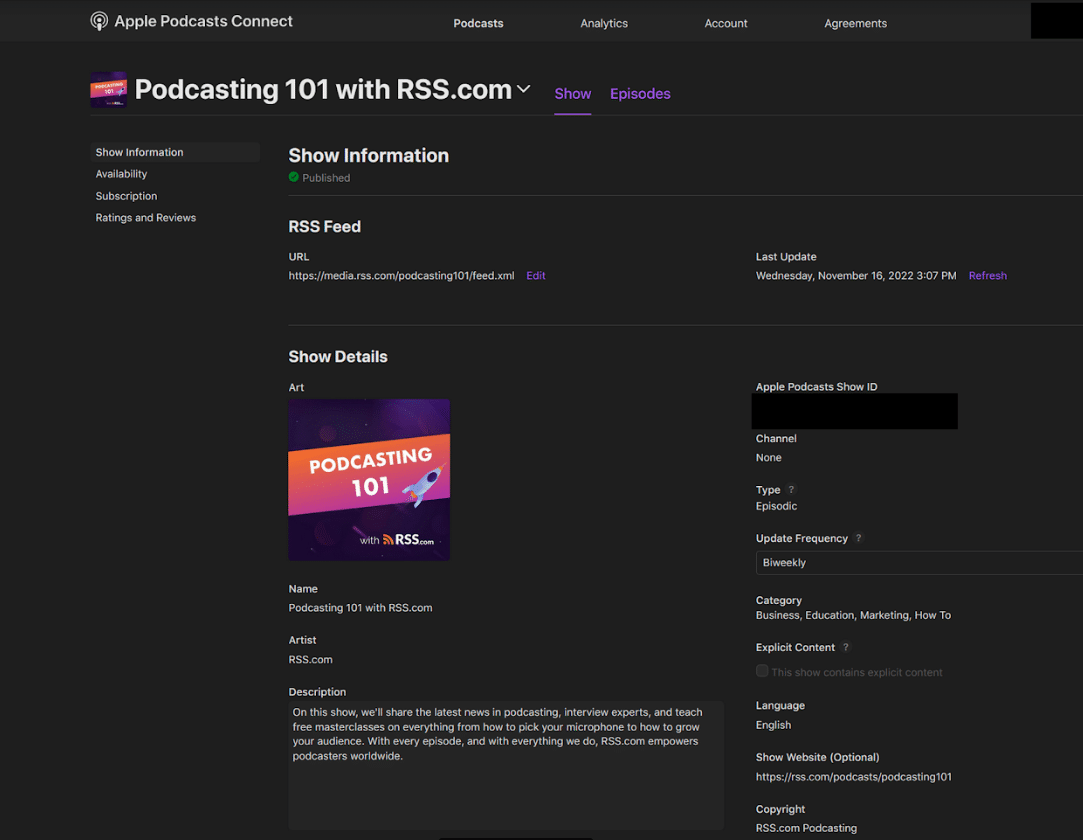
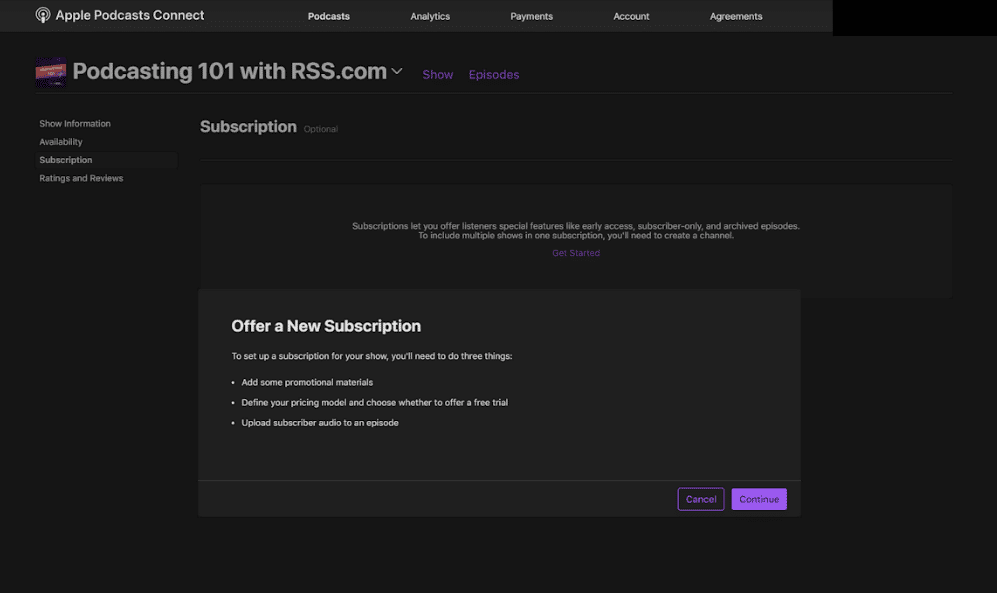
Next, click “Get Started.”
A pop up will appear to offer a new subscription. Click “Continue” to set up your pricing.
You will now have a draft subscription where you can add your show’s details and set up your pricing.
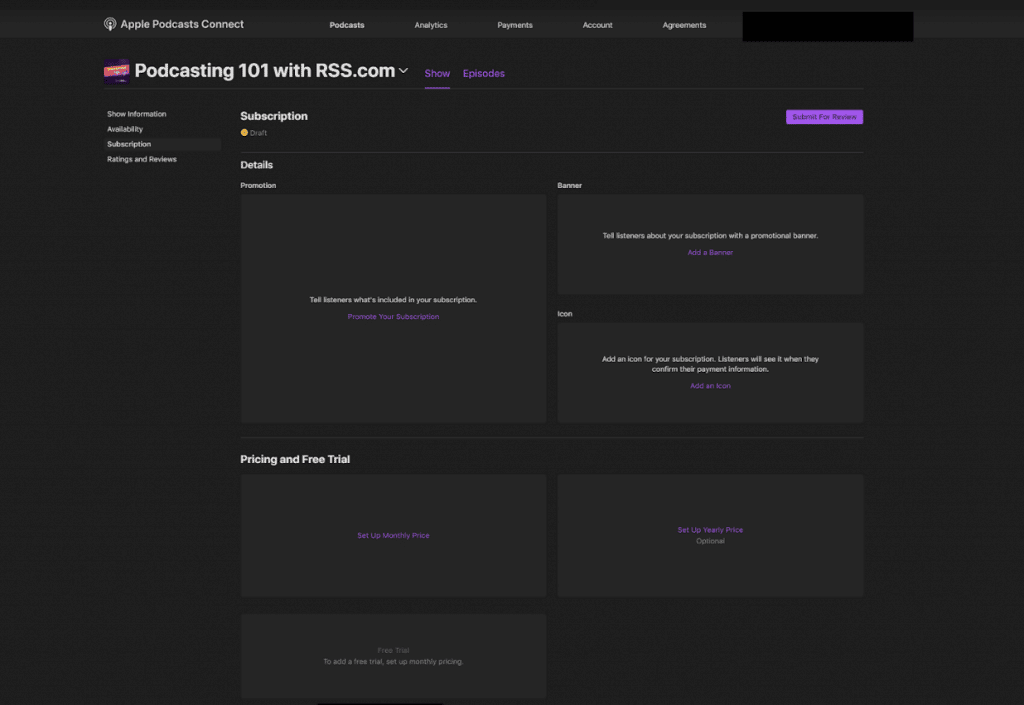
Pricing and Free Trial: How much should you charge your listeners?
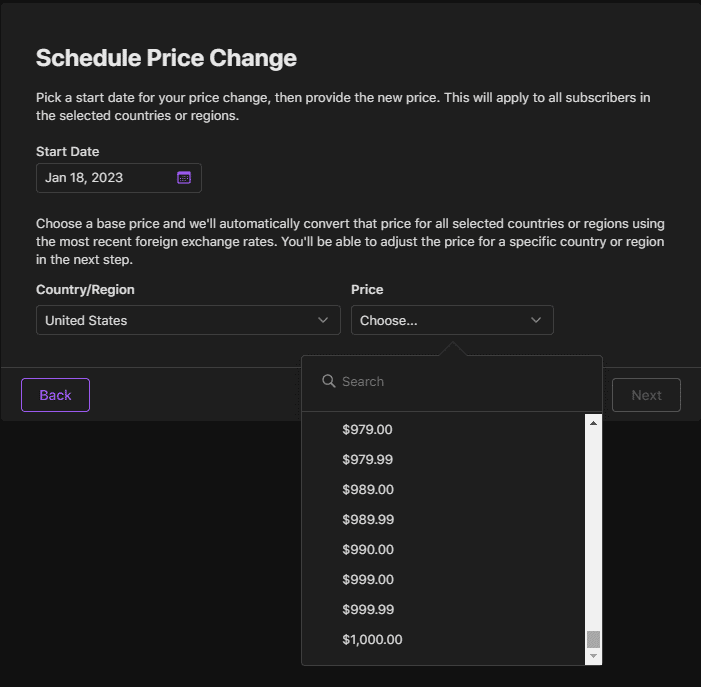
You can charge as little as $0.49 up to $1,000.00/month for Early Access or Exclusive episodes.
When determining your fee, you’ll want to consider:
- What your listeners will be receiving (i.e. will you be giving them additional content not available to the public?)
- Will this be an ad-free/sponsor-free experience?
As you gain more experience and grow your follower base, you can raise or lower your subscription prices to align with demand.
✨ To gain deeper insights into developing your subscription strategy, click here.
In the example below, we selected “Set Up Monthly Price” and chose the $0.99/month pricing tier.
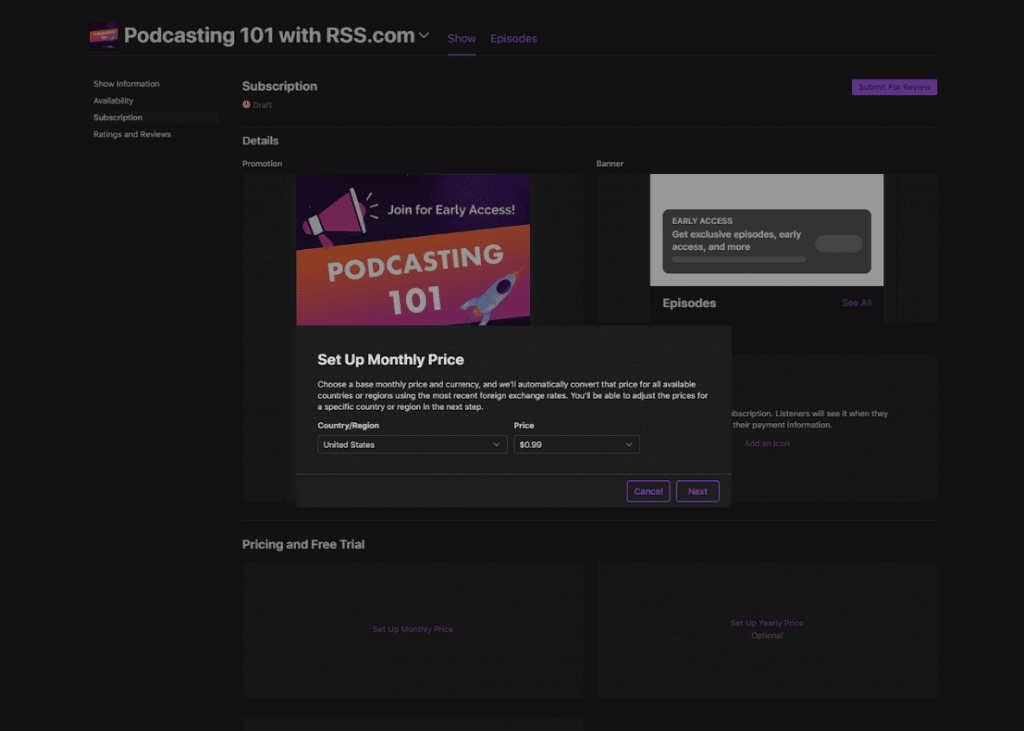
Once you’ve chosen your subscription price, click “Next” and you’ll be shown a currency conversion chart listing your monthly price across all available countries and regions.
If you have a global listener base, you have the option to change the monthly pricing subscribers pay based on their location.
It’s important to note that you’ll need to set up monthly pricing before you can add a free trial option for your listeners.
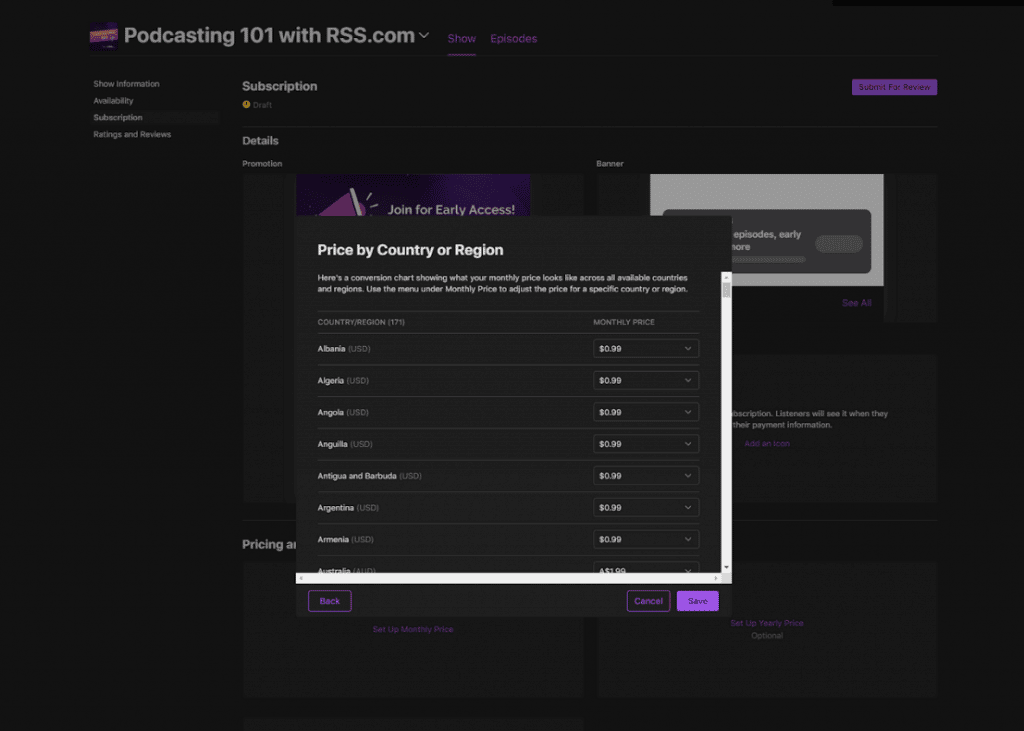
Next, click “Save.”
Now that your pricing has been established, you can add your show’s promotional materials.
Promotion
This promotion is what will pop up when a non-subscriber attempts to access your early access audio in Apple Podcasts. Think of your promotion as an advertisement to purchase a new subscription.
To set this up, click “Promote Your Subscription” under the “Promotion” box in your subscription dashboard.
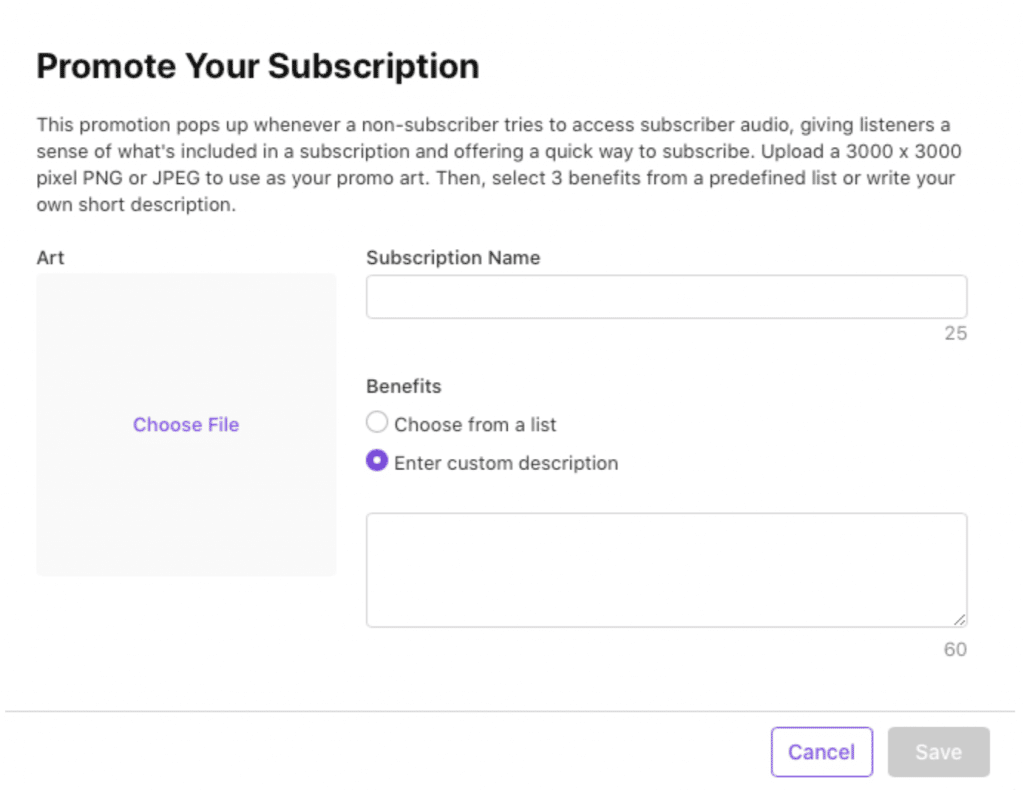
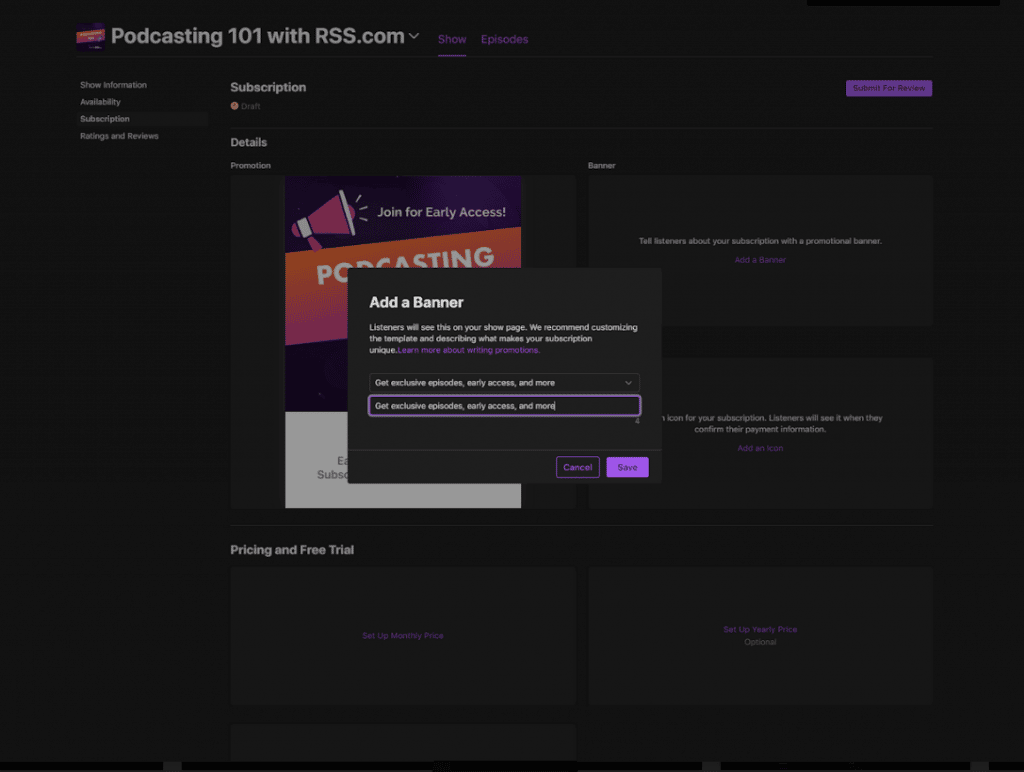
Once your promotion has been set up, you can add a promotional banner and an icon within your subscription dashboard.
The banner is what listeners will see on your channel and show pages, and the icon is what listeners will see when they confirm their payment information.
Adding a promotional banner and icon are a great way to brand your show and enhance the look and feel of your podcast.
Step 5. Getting Your Show’s Subscription Ready for Review
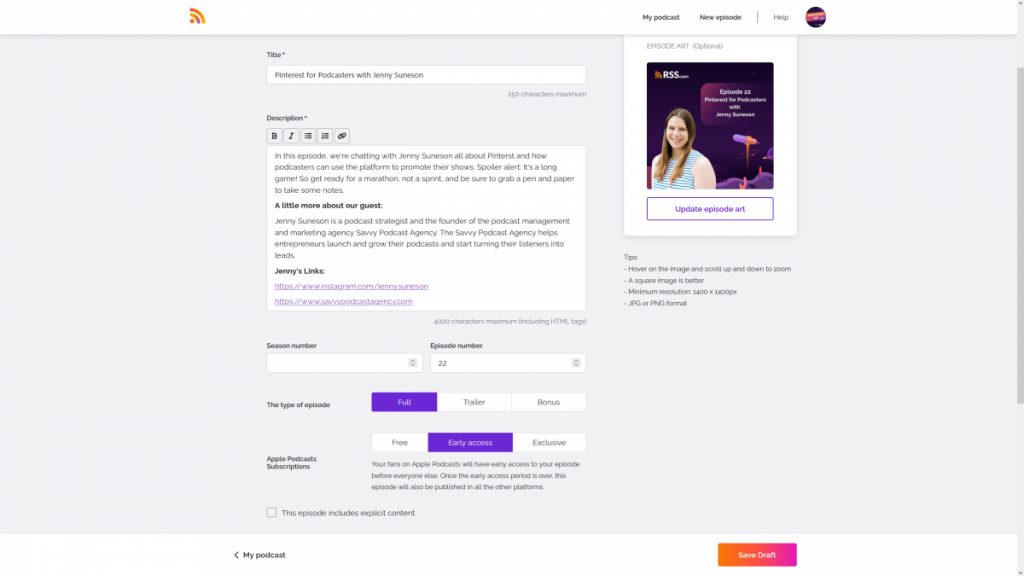
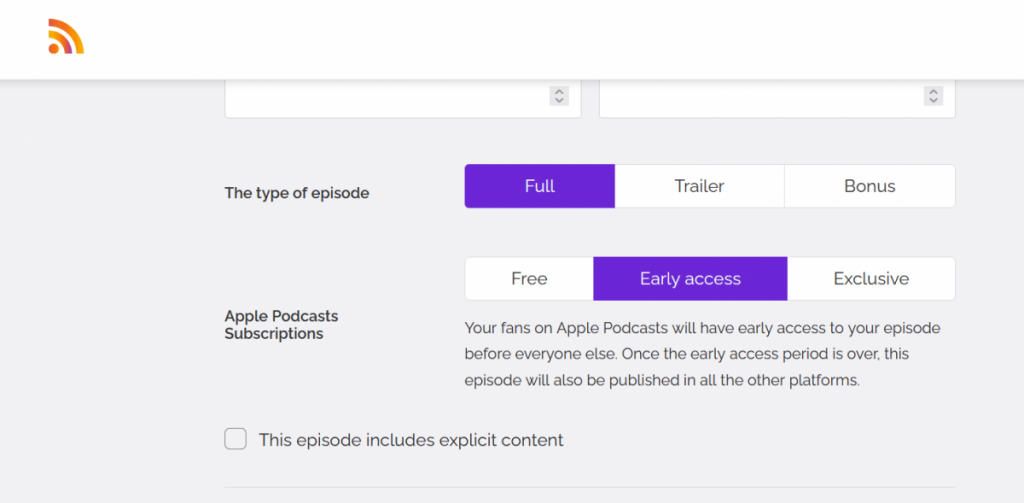
Now, head back to your RSS.com dashboard, and upload your first Early Access or Exclusive episode (see screenshot above).
The first Early Access or Exclusive episode you upload on RSS.com will be different than your public trailers or episodes.
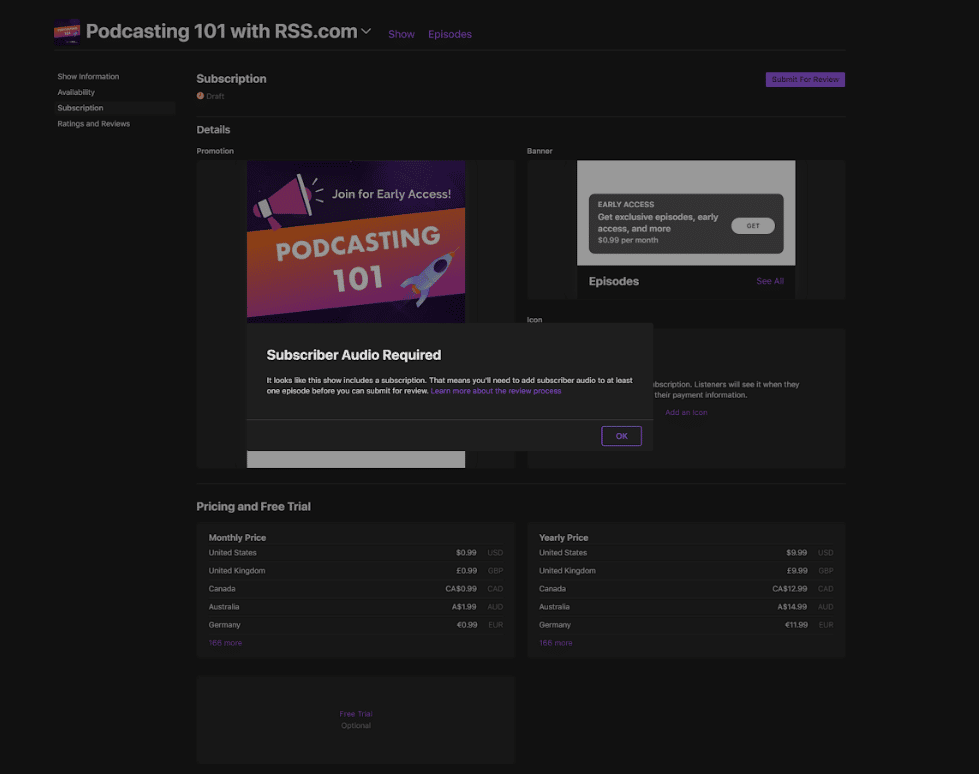
🚨 The step is REQUIRED in order to submit your subscription to Apple for review.
Without uploading your first episode, you’ll receive a “Subscriber Audio Required” error message from Apple when you attempt to submit your show in Apple Podcasts Connect (see screenshot below).
Step 6. Submitting Your Subscription for Review
Now that you’ve added the required details for your show in Apple Podcasts Connect, and have added your first Early Access and or Exclusive episode in your RSS.com dashboard, you’ll need to submit your subscription for review in Apple Podcasts Connect.
See purple “Submit For Review” box in top right-hand corner of screenshot below.
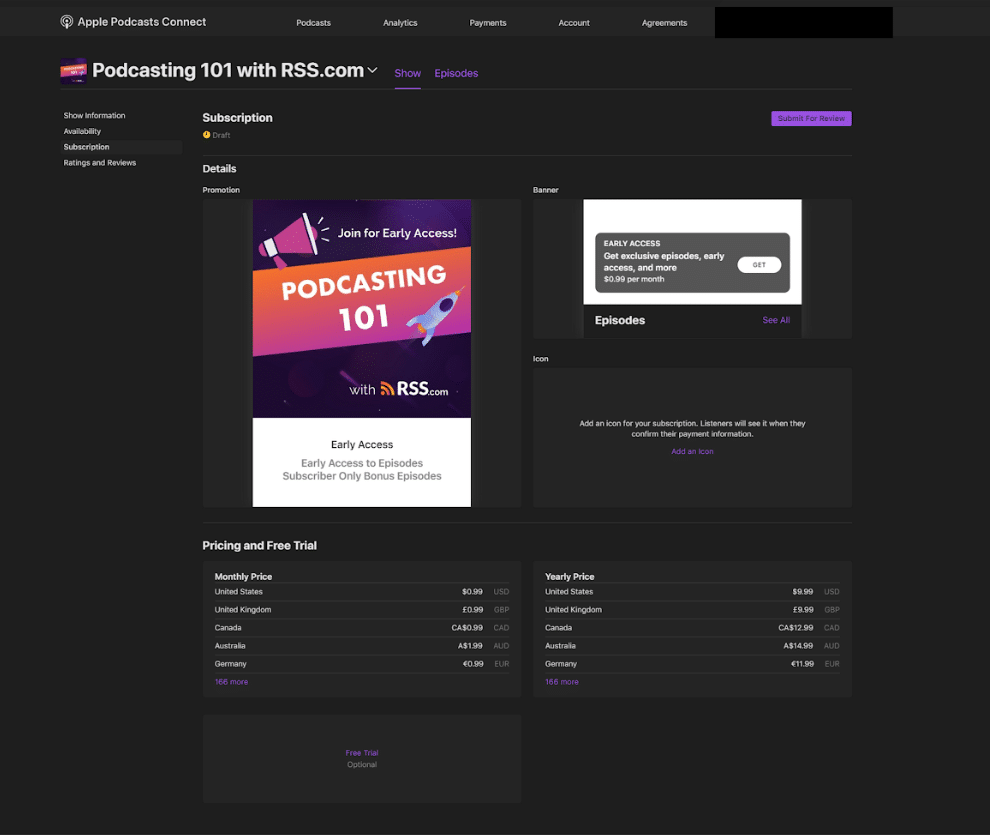
Your subscription will be manually reviewed by a real person, and once accepted, your premium content will be accessible on Apple Podcasts.
While you’re waiting for your subscription to be accepted, the status in your “Subscription” tab will change from “Draft” to “Subscription in Review.”
Apple Podcasts Subscriptions: Frequently Asked Questions
What is Apple Podcasts Subscriptions?
Apple Podcasts Subscriptions is a program developed by Apple Podcasts that provides a way for creators to offer early access and or exclusive episodes to fans.
✨ Click here to learn more about the Apple Podcasters Program.
Why Monetize Your Podcast via Early Access or Exclusive Episodes?
Utilizing early access and/or exclusive episodes, gives your faithful followers and fans another opportunity to support your show and get exclusive or early access to episodes.
Choosing your subscription rules at the episode level means you’ll have full creative control over which episodes are accessible to your subscribers.
How Do Apple Podcasts Subscriptions Work with RSS.com?
When you create a new podcast with RSS.com, or if you are already an RSS.com subscriber, you’ll have the option to sign up for “Early Access” or “Exclusive” episodes in the “Monetization” tab of your dashboard.
How Much Money Can I Make with Apple Podcasts Subscriptions?
Offering paid access through Apple Podcasts Subscriptions can be another great way to make money podcasting.
According to Apple, “You receive 70% of the subscription price at each billing cycle, minus applicable taxes.”
For subscribers that pay for a full year, “your net revenue increases to 85% of the subscription price, minus applicable taxes.”
You also have the potential to earn even more through paid subscriptions by joining Apple’s Affiliate Program, which pays a commission for each person who becomes a paying subscriber through your affiliate link.
✨ Click here to learn more about Apple’s Affiliate Program.
How Does The Affiliate Program Work for Apple Podcasts Subscriptions?
If you already have a show available on Apple Podcasts Subscriptions, you qualify to join the Apple Podcasts Affiliate Program. This program is also referred to as the Performance Partner Program.
✨ Click here to start your application to join the program.
How Much Can I Make as an Affiliate for Apple Podcasts Subscriptions?
According to Apple, when someone purchases a subscription through your affiliate link, “you can earn a one-time payment of 50% on the first paid month of every subscription membership you drive on a 30-day cookie window.”
If the subscription you’re promoting is $2/month, you’ll receive $1 “in equivalent commissions.”
Are There Any Other Ways to Promote Your Show with Apple Podcasts Subscriptions to Make More Money?
YES! Apple has created an Apple Podcasts Promotion Form that allows creators to submit their shows to be featured on the Apple Podcasts Subscriptions homepage.
Being featured on the Apple Podcasts Subscriptions homepage will greatly increase your show’s visibility and may lead to new subscribers who were previously not aware of your show.
You must have an Apple Podcasts Connect account, a membership to the Apple Podcasters Program and a published subscription prior to submitting your show be featured
To submit your show to be featured, click here. You will need to sign in with your Apple ID to view the form.
Is My Paid Subscription Available to Everyone?
Previously Apple Podcasts Subscriptions were available only to Apple users. However, Apple Podcasts is now accessible to anyone with a web browser on any device (including Android).
Now your listeners can subscribe to your show regardless of the device they are listening on!
For example, when a listener clicks the ‘Listen On’ button on any public podcast page on RSS.com, they’ll be taken directly to the show’s page on Apple Podcasts’ web platform.
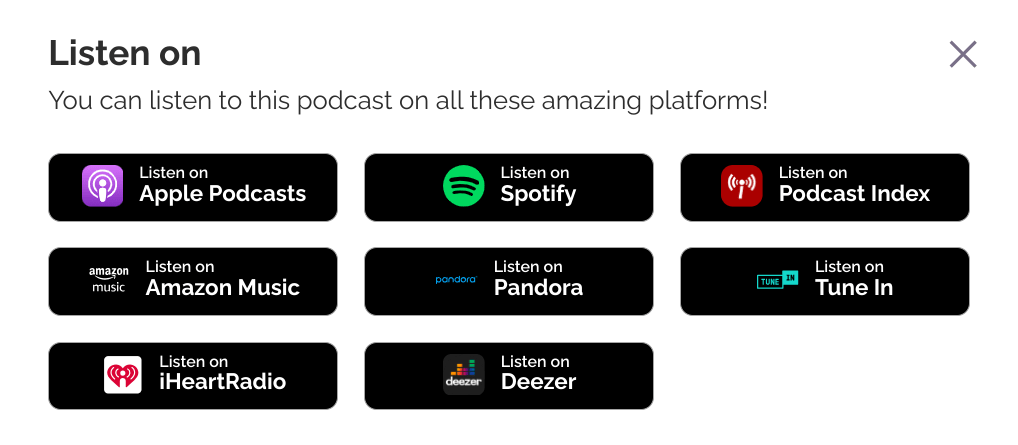
This means listeners can now subscribe to your show, including paid subscriptions, directly from your public RSS.com podcast website or by using an existing Apple Podcasts URL – even if they don’t have an Apple device.
This update makes it easier than ever for your audience to access your content on Apple Podcasts and support your show through Apple Podcasts Subscriptions.
Here’s how to install Apple Podcasts on Android.
What Is the Difference Between Early Access and Exclusive Episodes?
Early access episodes are released early to people who pay for your show’s subscription through Apple Podcasts Subscriptions. You can release your episodes up to two weeks prior to your public release date. Only your paid subscribers will have access to those episodes during the early access period. Then, on your public release date, everyone – including non paying subscribers – will be able to listen to your content,
Exclusive episodes on the other hand are only available to paying subscribers. These episodes will not show up in your public RSS feed at any time.
What Are the Advantages of Offering Early Access and Exclusive Episodes to Listeners?
For your listeners – they can help support your show and encourage you to create more content.
For the podcaster – Apple Podcasts Subscriptions are an exciting way for RSS.com users to monetize their shows by offering premium content to listeners for a small monthly fee.
By setting up Apple Podcasts Subscriptions for your podcast, you can earn monthly revenue and your listeners can support your content.