

Podcasting takes a lot of work. Planning, recording, editing, creating assets, uploading, promoting. The list goes on. And for most podcasters, a good chunk of that time is spent on tasks that feel repetitive.
That’s exactly why we built the RSS.com API. It gives you the ability to connect your RSS.com account to other tools and automate the parts of podcasting that eat up your time. Below are three ways you can put it to work today.
Prefer to watch? Check out our video walk-through with our evangelist Joe Casabona here:

What Can the RSS.com API Actually Do?
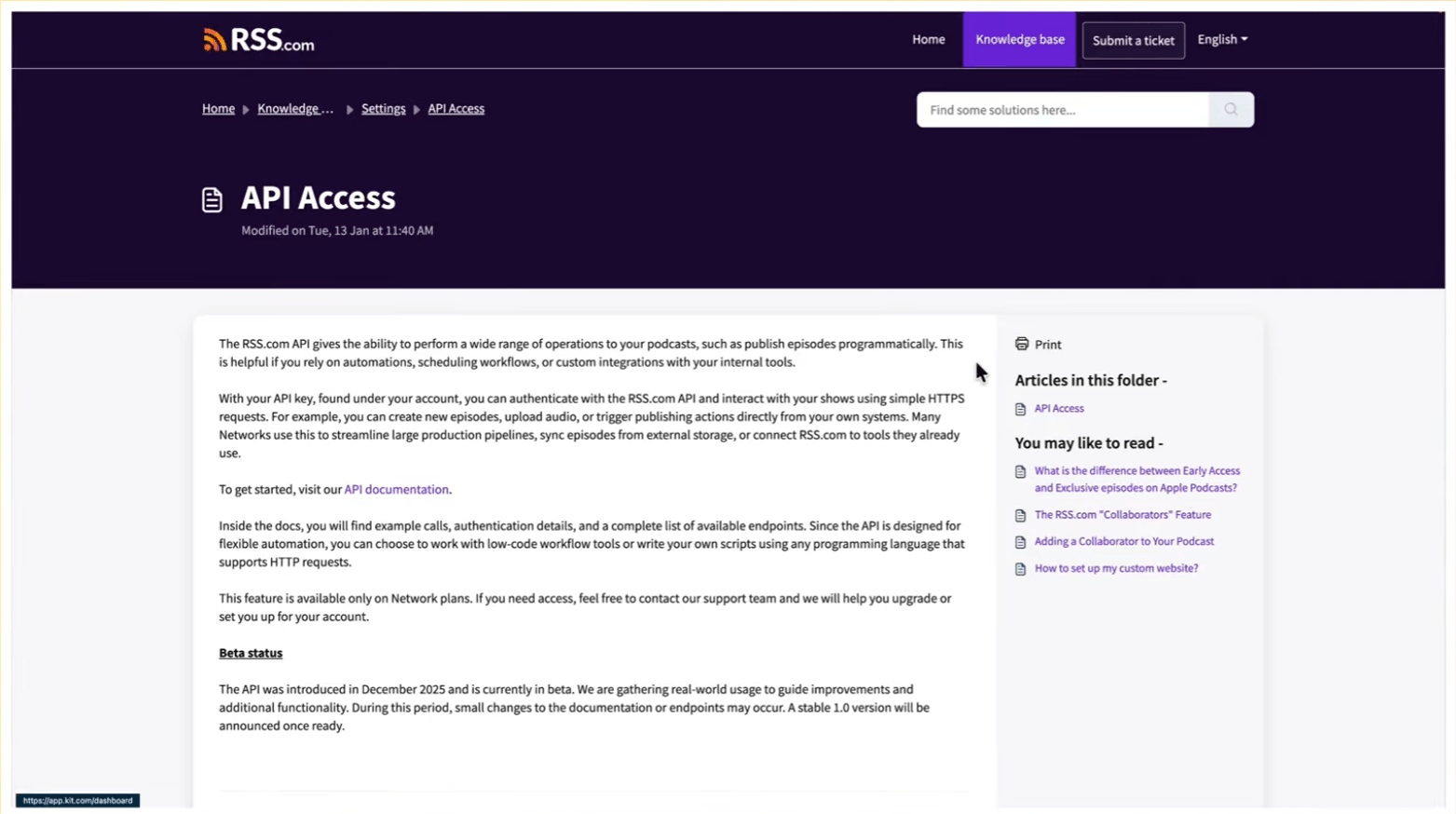
Before we get into the workflows, here’s a quick look at what the API supports.
You can use it to upload audio, create and retrieve episodes, pull podcast data, generate transcripts and chapters, manage categories, and more.
Essentially, any action you take inside your RSS.com dashboard can be triggered or automated from an outside tool or a program you build yourself.
To get started, you’ll need an API key. Head to your RSS.com account, click your profile photo in the top right, and go to API Access.
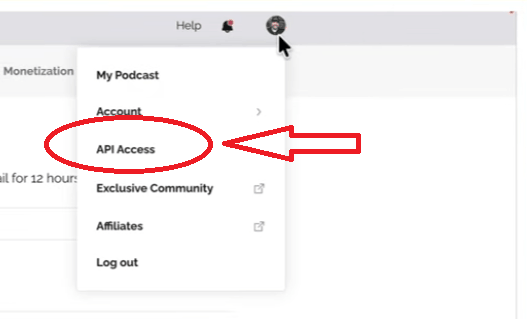
From there, you can create up to 10 API keys.
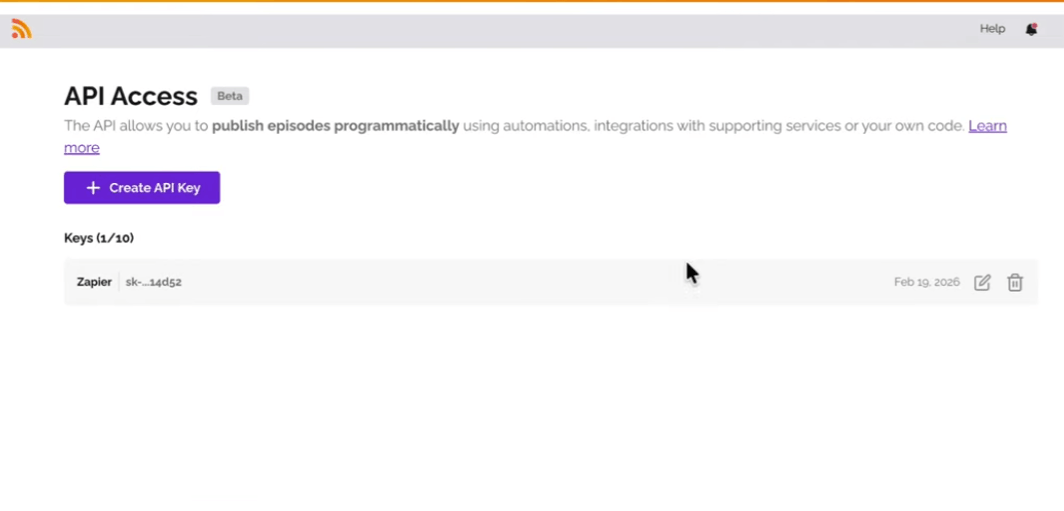
Name each one based on the tool you’re connecting it to so you can keep track.
Workflow 1: Clean and Upload Audio with Auphonic
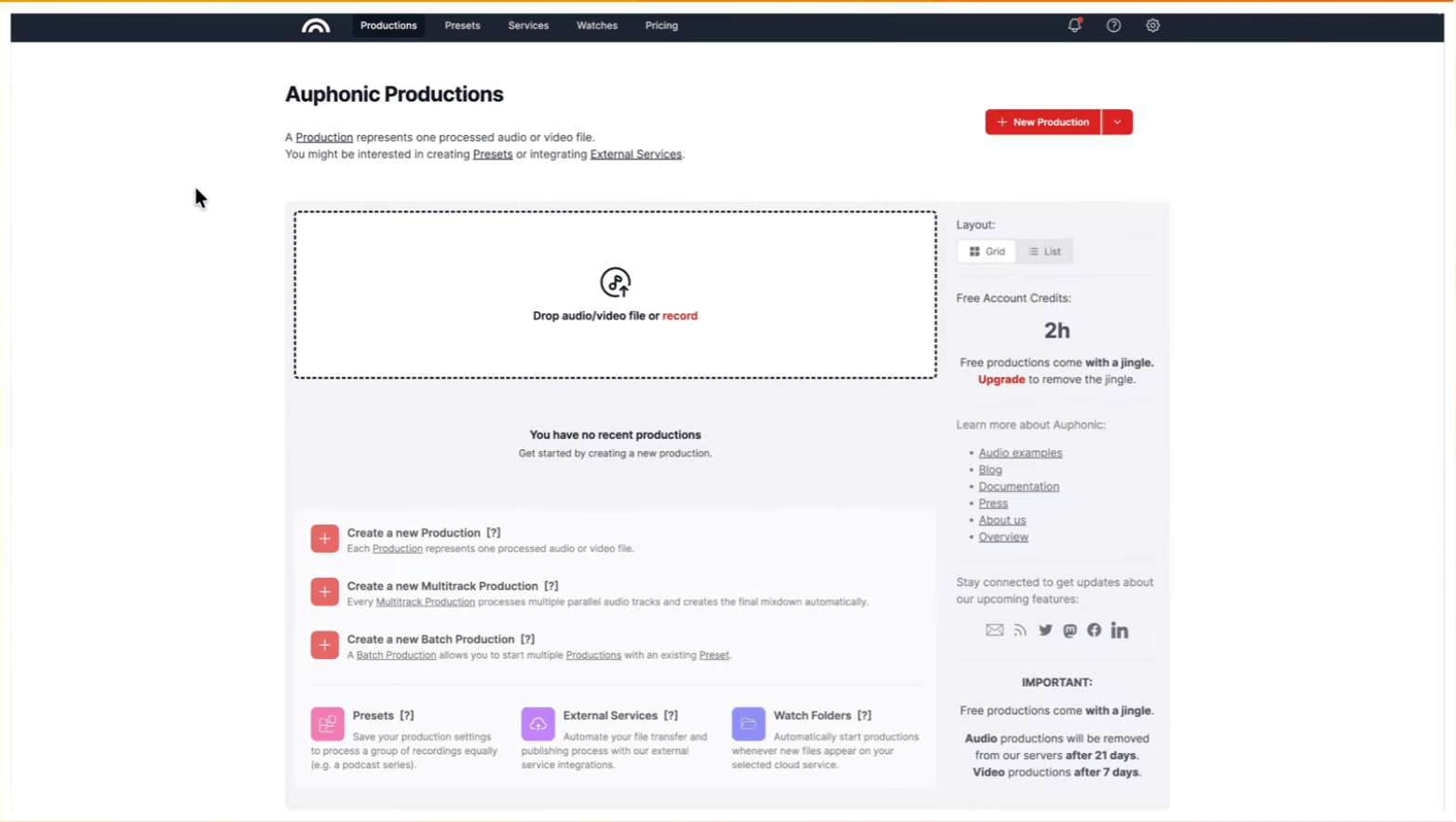
Auphonic is an audio processing tool that uses AI to level your sound, remove background noise, and clean up your recordings. It’s a solid option for anyone who wants to skip the manual editing step in software like Logic Pro or Audacity.
Auphonic now supports RSS.com as an external service. That means you can process your audio and send it directly to your RSS.com account without leaving the Auphonic dashboard.
Here’s how to set it up:
- In Auphonic, go to External Services
- Find the Video/Podcast section, and select RSS.com
- Enter your account name and paste in your RSS.com API key
- Once saved, Auphonic will pull in your podcasts automatically
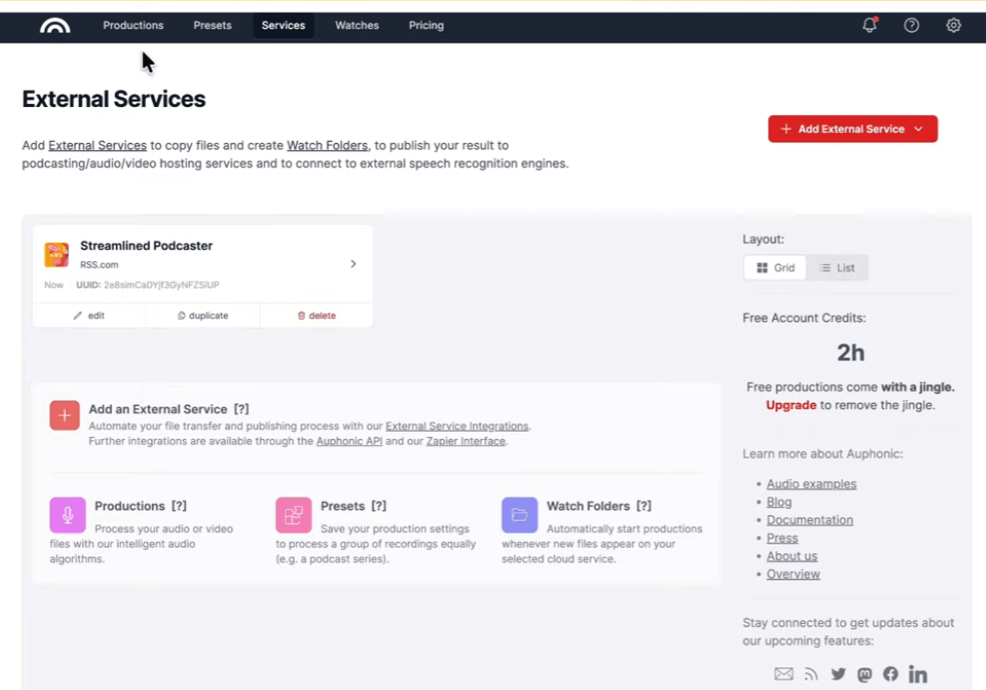
From there, you can record or import audio, apply processing like voice cleaning, and when you’re ready to publish, add RSS.com as an output under External Services in your production settings. Choose the podcast you want to upload to, and Auphonic handles the rest.
It takes care of the pre-production and audio cleanup phase in one place.
Workflow 2: Generate Marketing Content with PodFlowStudio

Once your episode is live, the work isn’t done. You still need a title that performs, a description that gets clicks, and content that connects with your audience. That’s where PodFlowStudio comes in.
PodFlowStudio is an AI-powered marketing tool built specifically for podcasters. It connects directly with RSS.com, so setup is quick.
- Sign in
- Go to your account settings
- Paste in your RSS.com API key
Once it validates, click Sync Podcasts and all of your episodes will load.
From there, pick an episode and hit Enhance.
PodFlowStudio will generate improved title options, including SEO-optimized versions, and create a full episode description. You can also upload a style guide if you want the output to match your voice and tone.
When you’re happy with the results, click Apply to RSS.com. The updated title and description are sent directly to your episode. No copy-pasting, no switching tabs.
This workflow handles the post-production side of things, specifically the marketing assets that help your episodes actually get found and listened to.
Workflow 3: Automate the Entire Process with Zapier
This one requires a bit more technical know-how, but it’s worth it if you want to automate your workflow from start to finish.
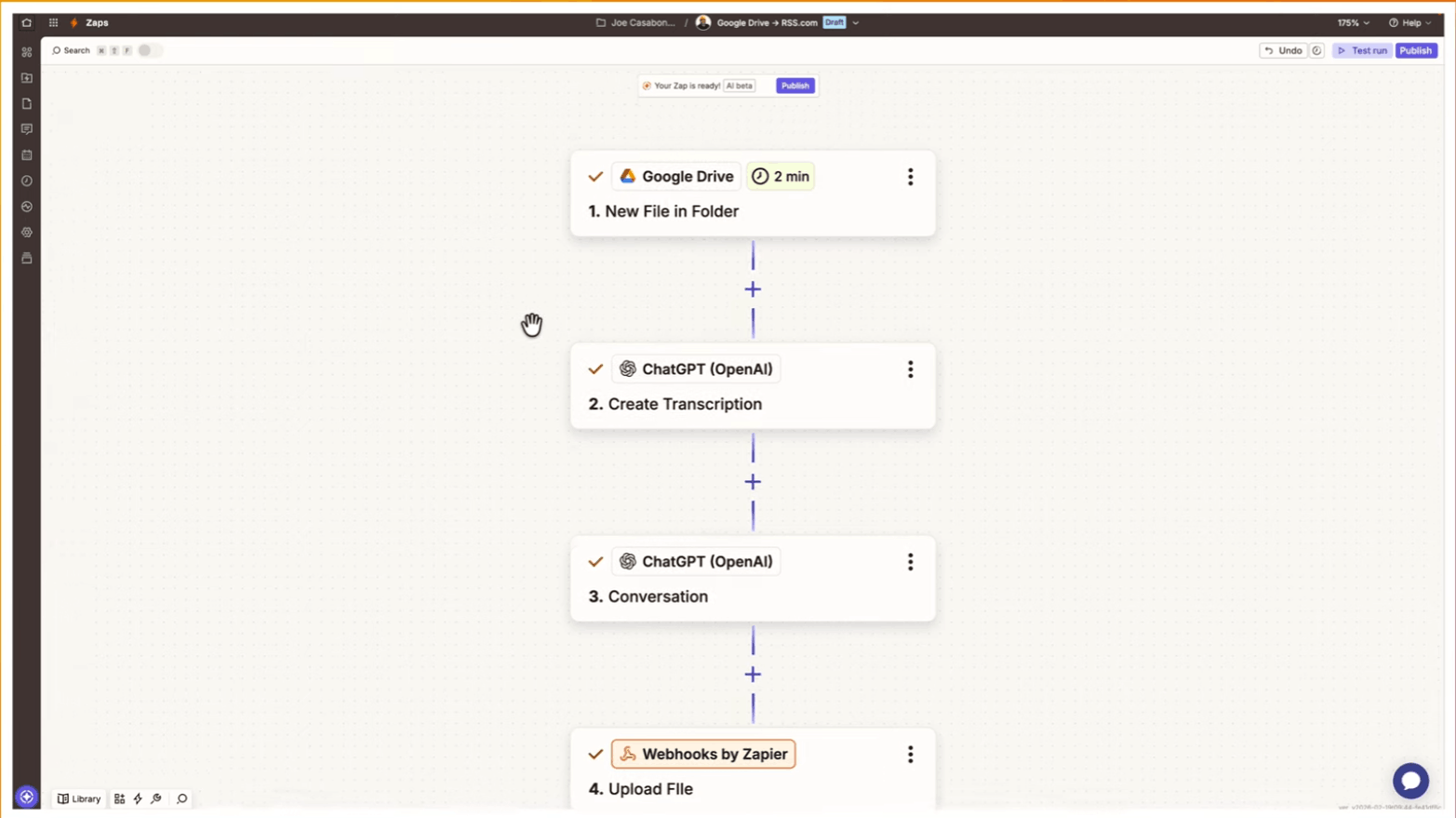
Using Zapier, you can build a multi-step automation that takes an audio file from Google Drive and turns it into a published episode on RSS.com with minimal manual input.
Here’s a basic flow Joe set up with his own account:
- First, Zapier watches for a new file in a specific Google Drive folder
- When it finds one, it sends the file to the RSS.com API to create a transcript, passing the file’s download URL and your API key via the X-API-Key header
- The API returns an audio upload ID, which you then use in a second API call to create and upload the episode. You can pull a title and description from a separate step, like a ChatGPT call, and include those in the episode creation request.
- Once the Zap runs, you’ll see the new episode appear in your RSS.com dashboard, processing and ready to go.
This workflow is the soup-to-nuts option. It handles the full production pipeline without you having to log in to multiple tools.
Which Workflow Is Right for You?
If you’re focused on audio quality and a clean recording, start with Auphonic. If your episodes are already publishing and you want better marketing assets, PodFlowStudio is the easier path.
And, if you’re comfortable working with APIs and want to automate your entire workflow, the Zapier setup gives you the most control.
All three use the RSS.com API to remove manual steps from your process. The goal is the same in each case: more time spent on creating, less time spent on the busywork around it.
You can find the full RSS.com API documentation linked here.
Ready to upgrade your podcast workflow? Launch your podcast for free with RSS.com today!