Beaver Tools
by Chris AhrweilerFind Real Duplicate Files — Not Just Similar Names
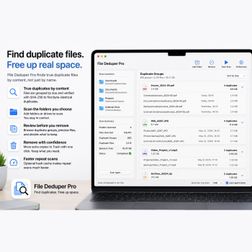
Duplicate files are easy to collect. You download the same archive twice. You move photos, videos, PDFs, or project files between drives and forget which copy is current. After a while, storage disappears into files that look familiar but are hard to verify manually. The problem is not finding files with the same name. The problem is knowing which files are truly identical. That is what File Deduper Pro is for. https://medium.com/@chris.ahrweiler/find-real-duplicate-files-not-just-similar-names-9fe03e51a297Pick a Color on Mac — The Simple Way
Sometimes you just need one color. A button color from a website. A background color from a screenshot. A quick HEX value for CSS, HTML or a design note. Click anywhere on your screen. The color is captured and copied as HEX. Now paste it where you need it. color: #FE5E31;The app also shows common color formats like HEX, RGB, HSL and CMYK, so you can copy the value that fits your workflow. There are many color picker apps on the Mac App Store. https://medium.com/@chris.ahrweiler/pick-a-color-on-mac-the-simple-way-a8cd576dd21aAVIF Is Ready for the Web — But Mac Apps Are Still Rare
AVIF is one of the most efficient image formats available today. It can create much smaller image files than JPEG, often with better visual quality. That makes AVIF a great choice for modern websites, blogs, app landing pages and product images. Browser support is no longer the problem. Safari, Chrome, Firefox and Edge all support AVIF today. https://medium.com/@chris.ahrweiler/avif-is-ready-for-the-web-but-mac-apps-are-still-rare-f0f6aa1f948eHandle ZST Files on Mac Without Terminal
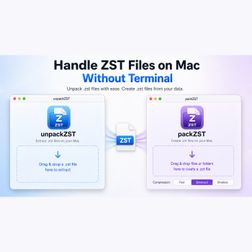
ZST files are becoming more common. Developers use them. Backup workflows use them. Infrastructure tools use them. Large datasets and technical downloads may arrive as.zst or.tar.zst files. Zstandard is fast, modern, and efficient. macOS handles ZIP files easily, but ZST is not part of the normal Finder workflow. When you receive a.zst file, you often end up looking for command-line tools or a larger archive manager just to extract one file. Creating ZST files can feel just as awkward. https://medium.com/@chris.ahrweiler/handle-zst-files-on-mac-without-terminal-45d9a6ca6fbaHandle 7z Files on Mac Without Terminal
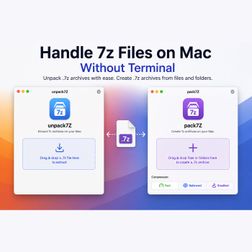
Downloads sometimes arrive as.7z archives. Large files may even come split into multiple parts. macOS can handle ZIP files easily, but 7z is not part of the normal Finder workflow. When you receive a.7z file, you often end up looking for a command-line tool or a large archive manager with far more features than you need. For many Mac users, that feels unnecessary. Opening a 7z archive should be simple: drop the file, extract it, and continue working. https://medium.com/@chris.ahrweiler/handle-7z-files-on-mac-without-terminal-ca8b2bf6e6aaKnow What Your Mac Is Doing — Without Opening Activity Monitor
Your Mac is usually quiet. A fan starts spinning, an app feels slow, a download behaves strangely, or disk space suddenly gets tight. Then you want to know what is going on without opening a large monitoring window. That is where a menu bar meter makes sense. The menu bar is always visible. It is the right place for small system signals: CPU load, memory usage, disk space, and network activity. Not a complicated graph wall. Just the numbers you want to see while you work. https://medium.com/@chris.ahrweiler/know-what-your-mac-is-doing-without-opening-activity-monitor-938007afc7d6Your Mac Clipboard, But Smarter
Copy and paste is one of the most useful things on a Mac. But the normal clipboard has one limitation: it only remembers the last thing you copied. Copy something new, and the previous text is gone. That is fine most of the time — until you need it back. A smarter clipboard solves this without making the workflow complicated. It simply sits quietly in the menu bar, remembers copied text, and waits until you need something again. Pick an item from the list. https://medium.com/@chris.ahrweiler/your-mac-clipboard-but-smarter-f1f9d14b0d22Convert Images to HEIC on Mac
HEIC is Apple’s modern image format. It is widely used by iPhone, iPad and macOS because it can store high-quality images with smaller file sizes than traditional JPEG. For Apple users, HEIC feels natural: Photos, Preview, Finder and iCloud all understand it well. Many images do not start as HEIC. You may have PNGs, JPGs, screenshots, website images or exported graphics — and want to save them as HEIC for smaller storage, better Apple compatibility, or a cleaner photo workflow. https://medium.com/@chris.ahrweiler/convert-images-to-heic-on-mac-f184c8ee4d6cUse Your NAS Remotely from Your Mac
A NAS works great at home. On the local network, your Mac can usually connect with SMB. Open Finder, connect to the server, and your NAS appears like a normal file share. The harder question is: how do you access the same NAS remotely from your Mac? Most NAS devices are built for storage, not for a perfect Mac remote-drive experience. Some vendors offer their own apps, some rely on browser access, some expect VPN, WebDAV, SFTP, DDNS, router settings, or port forwarding. https://medium.com/@chris.ahrweiler/use-your-nas-remotely-from-your-mac-4c2a4415cde9One Logo, Every Platform: How to Ship App Icons in One Go
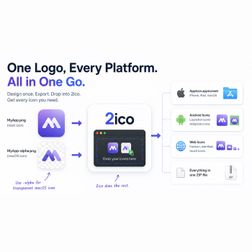
Designing an app icon often starts with one simple file: a logo on a 1024×1024 canvas. The trouble starts after that. A real app does not need just one icon. It needs a complete set for iPhone, iPad, macOS, Android, and the web. Each platform expects different sizes, different filenames, and in some cases different rules. The most common example is transparency. https://medium.com/@chris.ahrweiler/one-logo-every-platform-how-to-ship-app-icons-in-one-go-dc785f47bf0e