Tech It Up a Notch

Tech It Up a Notch

por Rachael and Clare
Temporada 1
Introducing - Tech It Up a Notch!
Trailer
We are Clare and Rachael, two Australian teachers with a love for digital learning, creativity, and all things learning. After years of sharing ideas in schools, we’re taking our conversations to the world to help you bring technology into your classroom with confidence. In this trailer, you’ll get to know us, our teaching journeys, and the story behind Tech It Up a Notch. Got a question or a tool you’d love us to explore? Email us at techitupanotchau@gmail.com — we’d love to hear from you!
Let Learning Take Flight with Drones
In this episode, we’re taking coding off the screen and into the air! Rach shares how she used DroneBlocks and Tello drones as part of a cross-curricular STEM project exploring the sustainability of a local river. Key Takeaways DroneBlocks is a great place to begin with a whole-class drone experience, allowing students to practise coding and test flight paths in a simulator before moving to physical drones. Tello drones can bring coding to life by allowing students to see their algorithms control a real-world device. Plan for technology to be temperamental! Battery life, connectivity and equipment faults can have a big impact, so having technical support and backup activities is valuable. Create a clearly defined flying zone and establish safety routines before launching the drones, including goggles, tied-back hair and keeping students behind a designated boundary. You don't need a drone for every student. Small groups or rotating activities can provide opportunities to code and fly without having a whole class of drones in the air at once. Drones offer rich cross-curricular opportunities, connecting digital technologies with science, mathematics, engineering, geography, design thinking and creative arts. Be prepared to experiment alongside your students. You don't need to have everything worked out before giving a new technology a go — sometimes the unexpected learning is the best part. Resources mentioned DroneBlocks Droneblocks FREE ‘Crazyflie Simulator (follow the link to grab the pin - top tip, write it on your board for the month and leave it there!) Tello drones
Putting the 'I' Back in AI: Smart Report Banks with Gemini & Sites
Writing reports is one of the biggest time commitments in a teacher's year, but what if AI could help without replacing your professional voice? In this episode, Claire shares how she used Gemini Canvas to build a custom report comment generator using her own bank of previously approved report comments. Rather than asking AI to write reports from scratch, she demonstrates how teachers can use AI to organise and streamline their existing expertise while preserving their authentic teacher voice. Key takeaway AI works best as an assistant, not an author. By building tools around your own resources and expertise, you can save time while ensuring your professional judgement and teacher voice remain at the heart of student reports. Resources mentioned Clare’s how to guide to creating a report comment assistant Google Gemini Canvas Google Sites Canva Create Apple Learning Summit
Insights from EduTECH Australia 2026
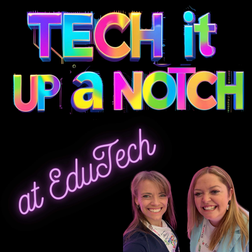
Join us as we recap our time at EduTECH 2026. After two inspiring days exploring the latest in education technology, we're sharing the tools, ideas, and standout moments that caught our attention. Key Speakers Andy Hargreaves Jason Reynolds Danny Liu / Castlereagh Statement Clare Willemse Professional learning CSER Digital Technologies Education Australian Library and Information Association Schools EdTech Tools ALTO (The Great Times Table Race) Handwriting Bot Sphero Kahoot! CEChat Behind the News ClickView Redbubble Seesaw Canva Padlet Google Workspace Google for Education Gemini Creators Teach Tech Lead Podcast Term Talk Podcast Unteachables Podcast Kirawee Public School Podcast Mrs Priestly ICT
Tried and Tested iPad Apps for Young Learners
In this episode of Tech It Up a Notch, Rachael and Clare share some of their favourite iPad apps for infants classrooms. From creativity and coding to storytelling and literacy skills, these apps help teachers use technology intentionally to support learning, engagement, and accessibility. Whether you’re brand new to classroom iPads or looking for fresh ideas, these are practical, classroom tested tools you can start exploring with confidence. ABC Kids Listen A fantastic free audio app from the ABC packed with podcasts, music, stories, mindfulness tracks, nature sounds, and educational content for children. Great for English audio texts, calming transitions, listening tasks, and sparking new learning. rED Writing A handwriting app designed to help students practise letter formation through tracing activities and guided feedback. Teachers and parents can choose Australian fonts and handwriting styles. Book Creator An easy-to-use digital publishing app where students can create their own books using text, drawings, photos, audio recordings, and video. ScratchJr A beginner coding app designed specifically for younger learners. Students use visual block coding to create animations, games, and stories. Freeform Apple’s built-in collaborative whiteboard app that allows students to draw, brainstorm, annotate images, create mind maps, and visually organise ideas. Honourable Mention: Play School Art Maker A creative app inspired by Play School that allows young learners to create artwork, scenes, and visual stories. Teachers Choice: Explain Everything A powerful, interactive teaching and note taking app that allows teachers and students to record lessons, annotate slides, demonstrate thinking and create engaging content.
Rethinking Devices for Learning with Apple Neo + Classroom
Drawing on feedback from an early adopter, Rach and Clare explore the new Apple Neo and how it sits between an iPad and a traditional laptop for school use. They unpack what makes it a strong classroom option, from battery life and performance to affordability and integration within the Apple and wider ecosystems. The conversation also highlights how tools like Apple Classroom can elevate teaching and learning by giving teachers greater visibility and control over student devices. If you, your school or child is considering a new device this episode offers practical insights. Key Takeaways Apple Neo sits between an iPad and MacBook in both price and functionality, making it a viable BYOD option. Education pricing makes Apple devices more accessible for schools, teachers, and families The Neo is not locked in to particular software, making accessing Microsoft or Google tools possible Performance is significantly improved compared to older, low-spec laptops, especially for everyday school tasks Some limitations possibly for high-performance tasks (e.g. video editing) and camera use Apple Classroom is a free tool that allows teachers to monitor and manage student devices in real time Apple Classroom is powerful but often underutilised, so worth exploring if you’re in an Apple environment. Resources Apple Education Pricing Apple Neo Apple Classroom Apple School Manager
Low-Prep Programming with Hour of Code
Drawing on real classroom experience, Rach and Clare explore how Code.org can introduce coding in a simple, engaging way without overwhelming teachers or students. From the popular Hour of Code activities like Dance Party and Minecraft to unplugged lessons and AI-integrated tasks, this episode is packed with practical ideas to build computational thinking and confidence. Key Takeaways Hour of Code offers free, browser-based coding activities that work across devices with no login required Block-based coding makes it accessible for primary students and beginners Activities are highly engaging, using themes like Minecraft, Dance Party and AI for Oceans Built-in supports like hints and debugging help students problem-solve independently Teachers can extend use through a dashboard to assign and track progress Resources now include lesson plans, slide decks and curriculum links Unplugged activities provide tech-free ways to teach coding concepts Strong differentiation through self-paced levels and increasing complexity Best used as a starter, supplement, or engagement tool rather than a full unit of work Ideal as a low-prep lesson, especially for casual teaching or end-of-term activities Resources Hour of Code (via Code.org) AI for Oceans Dance Party coding Minecraft Hour of Code
Turning Resources into Results with Notebook LM
This week Rachael and Clare explore how NotebookLM can act as a personalised research assistant for teachers. They unpack how it can streamline planning, simplify complex syllabus navigation, and generate study materials from trusted sources. From creating quizzes and summaries to producing podcasts, mind maps, and slide decks, this episode is packed with practical ideas perfect for reducing workload at any time of year. Key Takeaways Notebook LM uses a “walled garden” approach, meaning it only generates responses from the sources you upload Teachers can upload syllabus documents, policies, and resources to quickly find and summarise key information Built-in tools can generate quizzes, flashcards, mind maps, and study guides in seconds Audio overviews allow content to be turned into podcast-style summaries, supporting flexible learning Quality of output depends on the quality of sources and prompting Particularly powerful for senior students as a study and revision tool Encourages AI literacy by citing sources and promoting verification Best used to enhance learning, not replace critical thinking or core teaching practices Can significantly reduce teacher workload, especially for admin and resource creation Resources NotebookLM NotebookLM Help site Google Gemini ChatGPT Australian Framework for Generative Artificial Intelligence in Schools (Australian Government Department of Education) Australian Professional Standards for Teachers (AITSL)
Making Learning Visible with Seesaw
In part two of our discussion on Seesaw we explore how to get started without overwhelm, real examples of how Seesaw can be used across learning areas, and how it can function as a powerful formative assessment tool. We also share our honest reflections, what works brilliantly, what becomes tricky, and what to consider before rolling it out school wide. If you’ve been wondering how to move to embedded classroom practice with Seesaw, this episode is for you. Key Takeaways Despite the difference in timezones, the Seesaw help team is very responsive to requests for help. Start small. Introducing Seesaw with one clear routine or learning task builds confidence for both teachers and students. Explicit modelling is essential; students need to be taught how to create quality multimodal responses. Seesaw supports all types of assessment through ongoing evidence collection and student reflection. Feedback workflows can be streamlined when expectations and processes are clearly defined. Consistency across teams or stages improves parent understanding and reduces confusion. Clear boundaries around notifications and communication help prevent teacher overwhelm. Successful implementation requires intentional planning, not just access to the tool. Resources Seesaw Homepage: https://web.seesaw.me/ Seesaw Training & Professional Learning: https://web.seesaw.me/training
Building Strong Foundations with Seesaw
In this first episode of our two part look into Seesaw, we unpack what Seesaw can do, who it is designed for and why it has become such a widely used digital portfolio tool in primary classrooms. We explore access levels for teachers, students and families, how Seesaw aligns with curriculum and what schools need to consider before implementation. If you’ve been curious about Seesaw but unsure where to start, this episode will help you on your way. Stay tuned for Part 2 which will focus on examples of practical classroom applications, assessment features and, as always, our honest pros and cons. Key Takeaways Seesaw functions as a digital portfolio platform designed primarily for primary school settings. It allows students to document and reflect on their learning using multimodal tools (text, audio, drawing, video). The platform supports assessment through ongoing evidence collection. Family engagement is a major feature, enabling visibility of student learning beyond the classroom. Schools should consider privacy, permissions and consistency of use before rolling it out. A clear implementation plan is essential to avoid it becoming “just another platform.” Resources Seesaw Homepage: https://web.seesaw.me/ Seesaw Learning Resources & Training: https://web.seesaw.me/training
1 de 3